Cloud vs. On‑Premise CMMS: A Decision Framework for Compliance‑Heavy Industries

If you work in a regulated or security‑sensitive environment, choosing between a cloud CMMS and an on‑premise CMMS isn’t just an IT decision. It affects how you protect your data, meet compliance requirements, manage risk, and budget for the long haul. This guide breaks down the real‑world tradeoffs in a straightforward way. We’ll look at data sovereignty, security, compliance frameworks, and the true total cost of ownership. The goal is simple: help you make a confident, defensible decision that fits your operational reality. Why This Decision Matters More Than Ever Maintenance teams today rely on data for every part of their work. Asset histories, work orders, technician notes, IoT readings, and audit trails all feed the decisions that keep operations running. That information is sensitive, and in many industries, it is also heavily regulated. The stakes are high, which means one question becomes central to any CMMS decision: where should that data live, and who should control it. Cloud CMMS platforms offer speed, flexibility, and lower upfront costs. They reduce the burden on internal IT teams and make it easier to scale as your organization grows. On-premise systems offer a different set of advantages. They provide full control, complete isolation, and predictable security boundaries that can be essential in tightly regulated or restricted environments. Neither model is better in every situation. The right choice depends on your compliance landscape, your internal IT capacity, and your organization’s tolerance for risk. When you understand those factors clearly, you can choose the deployment model that protects your data and supports your long term operational goals. Data Sovereignty: Where Your Data Lives (and Why It Matters) Data sovereignty is one of the most important factors influencing CMMS deployment decisions. It refers to the laws and regulations that govern where your data is stored, how it is handled, and who has the legal right to access it. For maintenance teams that manage sensitive operational information, these rules can shape the entire technology strategy. When you choose your CMMS software, you are also choosing home for your data. For some organizations, the flexibility of cloud hosting works perfectly. For others, the rules are strict enough that only a fully controlled environment will do. Cloud CMMS: What to Expect On-Premise CMMS: What You Control If your organization must guarantee that data never leaves a specific physical location or jurisdiction, on-premise deployment is usually the safer and more compliant choice. Cloud platforms offer strong security, but they cannot always meet the strictest sovereignty rules. Understanding your regulatory landscape makes the decision much clearer. Security: Control vs. Shared Responsibility Security is often the point where cloud and on-premise debates become the most intense. Both deployment models can be secure, but they distribute responsibility in very different ways. Understanding that difference is essential for choosing the model that fits your organization’s risk profile. Cloud CMMS Security Cloud vendors operate under a shared responsibility model. They manage the infrastructure, the physical environment, the patching, and the core platform security. You manage user access, device hygiene, and internal policies that govern how your team interacts with the system. Upsides Tradeoffs On-Premise CMMS Security With on-premise deployment, the responsibility shifts almost entirely to your organization. You control the environment, the network, the patching schedule, and the security posture. Upsides Tradeoffs Cloud deployment gives you a stronger baseline security posture because vendors invest heavily in infrastructure and continuous updates. On-premise deployment gives you tighter control and isolation, which can be essential in regulated or restricted environments. The right choice depends on how much control you need and how much responsibility your team is prepared to take on. IT Infrastructure Costs: CapEx vs. OpEx Financial differences between cloud and on‑premise CMMS deployments become most apparent when you look at whether the costs fall under capital expenditures or operational expenditures. The two models follow very different cost structures, and understanding those differences helps teams plan realistically for both short term and long term budgets. Cloud deployment follows an operating expense (OpEx) model: Choosing the option for cloud CMMS often wins on predictability and simplicity. You pay for what you use, you avoid large capital investments, and you eliminate the hidden costs that come with maintaining physical infrastructure. On-premise deployment blends capital expenses with ongoing operating costs (CapEx + OpEx): Choosing on-premise CMMS can make sense if you already have the infrastructure and staff in place. However, when you account for hardware refresh cycles, licensing, and labor, it is rarely the cheaper option over time. Regulatory Compliance: The Deciding Factor for Many For compliance heavy industries, regulations often determine the deployment model before cost or convenience even enter the conversation. Some frameworks allow cloud hosting with the right controls. Others require full isolation and direct ownership of the environment. Cloud CMMS can support: Cloud vendors invest heavily in certifications and third party audits, which can help organizations meet a wide range of regulatory requirements. On-premise is often required for: In these cases, regulations prohibit third party hosting or require strict physical and jurisdictional control. When that is true, the decision is simple. You need on-premise. Total Cost of Ownership: The Five‑Year View Here’s a simplified comparison: Category Cloud On‑Premise Licensing Subscription Perpetual + support Hardware None Required IT Labor Low High Upgrades Automatic Project-based Security Vendor-managed Customer-managed Downtime Risk Low Medium–High Compliance Costs Lower (if vendor certified) Higher (internal audits) For most organizations, cloud ends up being 30–60% cheaper over a five‑year period. Cloud vs. On‑Premise CMMS: A Practical Decision Framework Here’s a simple way to evaluate your options and choose the CMMS model that truly fits your organization: Visual Checklist: Cloud vs. On-Premise CMMS 1. Compliance Requirements 2. Data Sovereignty 3. IT Capacity 4. Cost Structure 5. Operational Realities Your Likely Fit Industry‑Specific Recommendations Different industries operate under distinct requirements and regulations. Here’s a general overview of what each one needs. Industry Best Fit Why Healthcare Cloud or On‑Premise HIPAA‑compliant cloud is common; some prefer on‑prem for PHI control Defense & Aerospace On‑Premise ITAR, NOFORN,
How to Prioritize Maintenance Tasks So You Can Get Stuff Done

I planned my whole schedule today—a list of tasks and plenty of time to complete them all. Guess how many I finished? Yep. Zero. It wasn’t because I didn’t do anything. It was because my phone started ringing. Maintenance managers know what I’m talking about. Stuff happens. Emergencies come up. And we’ve all re-prioritized tasks based on who’s yelling the loudest. But as more maintenance departments move from a reactive to a proactive maintenance strategy (thanks to CMMS software), there’s less yelling because preventive maintenance means fewer emergencies and breakdowns. However, prioritizing your maintenance tasks becomes even more important. You want to get the important stuff done first, of course. However, you don’t want other things to slip through the cracks. So how do you prioritize your maintenance tasks? The Four Levels of Maintenance Tasks Priorities I start by categorizing maintenance tasks into one of four categories: Emergency tasks are urgent health/safety problems or operational disruptions. Some examples include loss of power or water supplies, HVAC failure, natural disasters, fire, key asset breakdowns, and major security problems. Obviously, those immediately go to the top of the list, no matter how long that list is. Next, you have high-priority tasks that will directly affect operations in the near future. These might include leaking roofs, high-use equipment that is not performing well, repairs to key assets, and safety inspections. Then comes the medium priority tasks, which typically include preventive maintenance schedules. These tasks will affect operations eventually and need to be performed to maintain optimum production. Examples include replacing filters, changing oil, checking belts, scheduling vendor services, etc. Last but not least, maintenance teams always have low-priority requests or tasks that need to be done as fill-in work but are not vital to day-to-day operations. These tasks might include non-critical repairs, furniture installation or replacement, decorative painting, etc. Priority Level Definition Typical Examples When It Should Be Done Priority 1: Emergency / Critical Tasks that pose immediate safety risks, cause production stoppage, or threaten asset failure. Safety hazards, equipment breakdowns, leaks, electrical faults. Immediately on same shift, often before anything else. Priority 2: High Priority Tasks that significantly impact operations or asset health but aren’t emergencies. Overdue PMs, issues that could become failures, compliance-related tasks. Within 24–72 hours, depending on risk and resources. Priority 3: Medium Priority Tasks that improve performance or reliability but have low operational impact. Minor repairs, adjustments, non-urgent PMs, cosmetic issues. Scheduled during normal workload or next available window. Priority 4: Low Priority / Nice-to-Have Tasks that don’t affect safety or operations and can be delayed without consequence. Painting, labeling, minor housekeeping, low-impact upgrades. As time allows, often grouped with other tasks. Calculate the Value of Maintenance Obviously, emergencies and breakdowns take precedence. But what about the rest? It’s not as simple as going down the list in order from high to low. Maintenance operations are far more complicated than that. Maintenance managers can start by understanding the value of each maintenance task. When I prioritize tasks, I’m looking at four things… Value to my organization Time to complete Proximity and/or location Potential loss if not completed. I use these four things as a proportional tool to figure out what needs to happen when. Obviously, value to the organization is a big part of the equation. You want to prioritize tasks on key assets that directly affect your operations. Next, estimate how much time each task will take. CMMS software provides historical information about time and costs, which will give you the information you need to make data-driven decisions. But if you’re new to the CMMS world, make an educated guess. Then, consider the proximity and/or location where the tasks take place. This factor is particularly important for organizations with large facilities, multiple locations, or off-site assets. Finally, consider the potential impact if not done. For example, what happens if you don’t change a component on time and the failure disrupts maintenance operations. You want to keep those lower-priority tasks from becoming high-priority or emergency situations. So how do you decide what to tackle first? I use a prioritization matrix. This simple scoring tool also helps maintenance teams rank work orders using consistent criteria. Instead of relying on gut instinct, the matrix provides a numerical score that shows which tasks should rise to the top. How the Matrix Works I evaluate each task across several factors. For each factor, you assign a: Score (typically 1–5) Weight (how important that factor is relative to the others). You multiply the score by the weight to get a weighted score. Next, add all weighted scores together to get the task’s total priority score. Higher scores indicate higher priority. Common Factors in a Maintenance Prioritization Matrix You also want to consider the following factors when prioritizing maintenance tasks: Asset Criticality: How essential the asset is to safety or operations Risk of Delay: What happens if the task is postponed Time to Complete: Short tasks may be bumped up as quick wins Proximity / Efficiency: Whether the technician is already near the asset Safety or Compliance Impact: Whether the task reduces risk or meets regulatory requirements. Example of a Prioritization Matrix This example shows how a prioritization matrix works. Factor Score (1–5) Weight Weighted Score Asset criticality 5 0.4 2.0 Time to complete 3 0.2 0.6 Proximity 4 0.1 0.4 Risk of delay 5 0.3 1.5 Total — — 4.5 A total score of 4.5 indicates a high-priority task. It’s not an emergency, but it should be scheduled soon to prevent operational or safety issues. This approach reduces arguments about what teams should do first, helps planners justify decisions to leadership, keeps technicians focused on the highest‑value work, and prevents low‑impact tasks from clogging the schedule. It also works effectively inside a CMMS, especially when automated. How Do I Prioritize Maintenance Tasks? Let’s look at some real-world scenarios. Combining Tasks. A key asset needs a major repair. Your tech is working on the same components that have a PM scheduled for next week. The
CMMS Implementation Success Blueprint: Avoid These 7 Costly Mistakes
Rolling out new CMMS software offers one of the fastest ways to modernize maintenance, boost reliability, and finally get clean data you can trust. But here’s the part most vendors won’t say out loud: CMMS implementations fail all the time. Not because the software is bad, but because the rollout wasn’t set up for success. This practical, real‑world guide helps you roll out maintenance software without the headaches. It walks you through the seven mistakes that derail CMMS projects most often, why they happen, and how to avoid them. See also: CMMS Implementation: Best Practices for Success. For the checklist version, see the 10-step CMMS implementation guide. Mistake #1: Treating CMMS as “Just Software” Instead of a Change in How People Work What Usually Goes Wrong Teams buy the tool, install it, and assume everyone will magically start using it. But CMMS does more than add new buttons to click. It reshapes how work is requested, assigned, documented, and measured. That means it disrupts habits, routines, and long‑held expectations about how things have always been done. See also: Get More Out of Your CMMS Software. This mistake is where most implementations stumble. The challenge is not the software itself. It is the people side of the transition. Technicians may worry the system will slow them down or be used to scrutinize their work. Supervisors may feel overwhelmed by new workflows and data requirements. Leadership may underestimate the time and support needed to shift behaviors. Without intentional change management that includes training, communication, role clarity, and ongoing reinforcement, CMMS becomes just another tool that never reaches its potential. Technology can only deliver value when the people using it understand why it matters and feel supported in changing the way they work. Why It Matters A Better Approach Real‑World Example A food processing plant rolled out CMMS without involving technicians in the design of workflows or data entry processes. Adoption stalled at 22 percent because the system didn’t match how work was actually performed on the floor. After bringing technicians into the redesign process by mapping real workflows, simplifying forms, and adjusting task steps, adoption jumped to 91 percent in just three months. The difference wasn’t the software. It was ownership, clarity, and collaboration. Mistake #2: Importing Messy Data and Hoping It’ll Fix Itself What Usually Goes Wrong Organizations often rush the setup and import old spreadsheets directly into the software without taking time to clean or standardize the data. It feels efficient in the moment. But this shortcut creates long‑term headaches. Years of inconsistent naming, outdated assets, mismatched fields, and one‑off spreadsheet quirks get carried straight into the new system. The result is software that starts off cluttered and confusing. Duplicate assets appear under slightly different names. Critical fields are missing or misaligned. Preventive maintenance tasks do not match real equipment or actual maintenance practices. Instead of launching with a clean, reliable foundation, the organization ends up with a system that mirrors the chaos of the old spreadsheets. From day one, the software is harder to use, harder to trust, and harder to fix. What should have been a fresh start becomes a continuation of old problems, only now they are embedded in a system that was supposed to solve them. Why It Matters A Better Approach Real‑World Example A university imported 14,000 assets into their new CMMS without a data review. After go‑live, they discovered 3,200 of those assets were duplicates created over years of inconsistent spreadsheets. A full cleanup reduced the list to 9,800 verified assets. With accurate data and clearer PM assignments, their preventive maintenance compliance increased by 27 percent. Mistake #3: Designing Workflows That Look Great on Paper but Don’t Work in Real Life What Usually Goes Wrong Teams often set out with the best intentions: build an airtight workflow that captures every detail and leaves nothing to chance. In a meeting room, this version looks great and makes leadership feel confident everything is under control. But once that same workflow hits the shop floor, reality pushes back hard. To technicians, the workflow feels like a maze. Every additional field becomes another interruption. Every approval step becomes another delay. What looked like thoughtful structure in a conference room turns into extra taps, extra scrolling, and extra time they don’t have. Instead of helping them do their jobs, the workflow slows them down at the exact moment they need to move quickly. And the outcome is entirely predictable: technicians avoid the system whenever they can. They skip fields just to get through the form. Or they just enter placeholder text. They find shortcuts or revert to paper because it’s faster and doesn’t fight them. The workflow designed to create consistency ends up creating a widening gap between what the CMMS says is happening and what’s actually happening on the floor. Why It Matters A Better Approach Real‑World Example A manufacturing plant launched a CMMS with 18 required fields on every work order. Technicians pushed back immediately, and completion rates plummeted. After reviewing the workflow with a small pilot group, they reduced the required fields to six. Within weeks, work order completion rates increased by 40 percent, and the system finally reflected real maintenance activity. Mistake #4: Skimping on Training Because “The Software Is Intuitive” What Usually Goes Wrong Teams often assume that everyone will simply figure it out once CMMS goes live. But for technicians who have spent years working from paper job tickets, whiteboards, radio calls, or spreadsheets, it’s not a minor tweak. It’s a fundamental change in how they request work, document tasks, track parts, and communicate with supervisors. What feels intuitive to the project team can feel foreign, disruptive, or even intimidating to the people doing the work. Without structured, role‑specific training, users naturally fall back on what they know. They rely on memory instead of the system. If they’re unsure what belongs in a field, they skip it. They enter incomplete data or make honest mistakes that ripple through reports and KPIs. And
The Four Types of Preventive Maintenance

Preventive maintenance serves as the backbone of reliable operations. But reducing breakdowns isn’t a single strategy. It’s a spectrum of approaches suited to different asset types, risk levels, and operational realities. However, the goal is the same: prevent failures before they happen. See also: Preventive Maintenance ROI: Why It’s Worth the Investment. The four major types of preventive maintenance software are time‑based, usage‑based, condition‑based, and predictive. Understanding how they differ helps teams build smarter, more efficient maintenance programs. Preventive work is one kind of planned maintenance; the terms are related but not identical. This blog explains the four types of preventive maintenance and how a modern CMMS supports each one. Preventive Maintenance Type #1: Time‑Based Maintenance Time‑based maintenance is the most traditional and widely recognized form of preventive maintenance. In this approach, maintenance tasks are performed at fixed, predetermined intervals (i.e., monthly, quarterly, or annually) regardless of how often the asset has been used or whether it shows signs of wear. The goal is simple: prevent failures by maintaining equipment on a routine schedule. This approach works well for assets that wear down in predictable ways or must be serviced at set intervals by regulation. Because it doesn’t depend on real‑time performance data, it’s simple to use and often forms the basis of a preventive maintenance program. See also: Discover the Key to Preventive Maintenance: Root Cause Analysis. When It Works Best How CMMS Strengthens Time‑Based Maintenance CMMS makes time‑based maintenance more consistent by automating the planning and administrative work that usually slows teams down. Instead of relying on spreadsheets, paper logs, or memory, it keeps every task scheduled, tracked, and documented. With CMMS, teams can: By centralizing scheduling and documentation, time‑based maintenance becomes more reliable and far less manual. CMMS cuts administrative work and helps organizations carry out time-based maintenance with greater accuracy, consistency, and accountability. Preventive Maintenance Type #2: Usage‑Based Maintenance Usage‑based maintenance shifts the focus from the calendar to the actual workload. Instead of servicing equipment after a specific time, usage-based maintenance triggers tasks when an asset reaches a threshold such as operating hours, cycle counts, mileage, or production output. This approach aligns maintenance with real wear and tear, making it more precise and cost‑effective. Usage-based maintenance becomes especially for equipment with fluctuating usage. Some assets run continuously, while others may operate only during peak demand. Treating them the same leads to unnecessary maintenance on lightly used equipment and delayed service on heavily used machinery. Usage‑based maintenance solves this problem by tying service directly to how hard an asset is working. When It Works Best How CMMS Strengthens Usage‑Based Maintenance CMMS elevates usage-based maintenance from a manual process to a streamlined, automated strategy. By connecting usage data directly to maintenance triggers, CMMS ensures that service happens at the right moment. Tasks are scheduled not too early, but also not too late. With CMMS, teams can: With CMMS, usage‑based maintenance becomes dynamic, data‑driven, and far more reliable than reactive or calendar‑based approaches. It empowers teams to service assets exactly when needed. As a result, it maximizes uptime while minimizing unnecessary work. Preventive Maintenance Type #3: Condition‑Based Maintenance (CBM) Condition‑based maintenance uses a more responsive, data‑driven approach than traditional preventive maintenance. Instead of servicing equipment on a fixed schedule, CBM relies on real‑time or regularly collected indicators of asset health. Work happens only when the data shows declining performance or a likely failure, helping teams act at the right moment to avoid both unnecessary tasks and costly breakdowns. CBM works for critical assets where small performance changes can signal bigger problems. By tracking factors like vibration, temperature, pressure, noise, lubrication quality, or electrical load, teams can spot early warning signs well before a failure happens. This approach makes CBM an effective way to boost reliability, extend asset life, and reduce unplanned downtime. When It Works Best How CMMS Strengthens Condition‑Based Maintenance CMMS transforms CBM from a manual, data‑heavy process into an automated workflow. By serving as the central hub for all condition data, CMMS ensures that insights don’t get lost in spreadsheets, emails, or paper logs. As a result, the right actions happen at the right time. With CMMS, teams can: When paired with CMMS, condition‑based maintenance becomes truly actionable. Instead of reacting to failures or relying on guesswork, teams can make informed, timely decisions based on real asset performance. That results in better reliability and use of maintenance resources. Preventive Maintenance Type #4: Predictive Maintenance (PdM) Predictive maintenance represents the most advanced and forward‑looking approach within the preventive maintenance spectrum. Instead of relying on fixed schedules or usage thresholds, PdM uses real‑time monitoring, advanced analytics, and machine learning to anticipate failures before they happen. By analyzing patterns in sensor data (such as vibration, temperature, electrical load, lubrication quality, or acoustic signatures) PdM identifies subtle changes that signal issues long before they result in breakdowns. This approach allows organizations to intervene at the exact right moment, maximizing asset life while minimizing unplanned downtime. When implemented effectively, predictive maintenance can transform maintenance from a cost center into a strategic advantage, improving reliability, safety, and operational efficiency. When It Works Best How CMMS Strengthens Predictive Maintenance Predictive analytics can show when a failure is likely, but CMMS turns that insight into action. Without a system to organize data, trigger work, and track results, predictive maintenance is just information with no follow‑through. CMMS makes PdM actionable by linking predictions to the right workflows, people, and processes. CMMS helps teams: Predictive maintenance is only as strong as the system that turns predictions into action. CMMS serves as that system. By bridging the gap between analytics and execution, CMMS ensures that predictive insights translate into timely interventions, safer operations, and more reliable assets. CMMS Makes Every Strategy Stronger Most organizations don’t rely on a single type of preventive maintenance, and they shouldn’t. Each approach plays a different role. Time‑based maintenance keeps routine tasks on track for simpler equipment. Usage‑based strategies ensure assets with fluctuating workloads receive attention when they truly need it. Condition‑based
What Is Process Failure Mode and Effects Analysis (PFMEA)?

Process Failure Mode and Effects Analysis (PFMEA) is a step‑by‑step way to find and fix problems in a process before they happen. It comes from a larger method called Failure Mode and Effects Analysis (FMEA). However, PFMEA looks only at risks that come from how the work is done: how people do tasks, how machines are used, and how materials move through a system. When organizations use PFMEA well, they can cut down on downtime, make better‑quality products, improve safety, and build a workplace that focuses on preventing problems instead of reacting to them. As industries face more pressure to be reliable, follow rules, and work efficiently, PFMEA has become an important tool for ongoing improvement and strong day‑to‑day operations. Modern operations depend on consistent, predictable processes. Yet even well-designed processes contain inherent risks. Variability in human performance, equipment wear, environmental conditions, and material inconsistencies can all introduce failure modes that compromise quality, safety, or uptime. PFMEA provides a structured way to anticipate these risks before they happen. By analyzing potential failure modes, their causes, and their effects, organizations can take corrective actions that deliver the greatest impact. What Is PFMEA? PFMEA stands for Process Failure Mode and Effects Analysis. It is a proactive risk-assessment tool used to identify how a process might fail; understand the consequences of those failures; determine the root causes; prioritize risks based on severity, likelihood, and detectability; and implement controls to prevent or detect failures. Why PFMEA Matters Organizations adopt PFMEA because it delivers measurable operational and financial benefits. Key benefits include reduced downtime, improved product quality, enhanced safety, lower operational costs, regulatory compliance, and a stronger continuous improvement culture. Core Components of PFMEA PFMEA breaks a process down into simple parts so teams can clearly see where problems might happen and how to prevent them. Each part of the analysis looks at a different angle of risk, from how a failure could occur to how serious it would be and what controls are already in place. Understanding these elements helps organizations spot weak points early. As a result, they can focus their improvement efforts where they matter most Failure Mode Failure mode describes how the process could fail or break down. A failure mode is any way the process might not perform as intended, such as producing defects, missing steps, creating delays, or causing unsafe conditions. It focuses on what could go wrong, but not why it happens. Effect of Failure Effect of failure explains what happens if the failure mode occurs. Effects can impact product quality, customer satisfaction, safety, production time, or cost. If the team understands the real‑world consequences, they can judge how serious the failure would be if it went unnoticed. Cause of Failure Cause of failure identifies why the failure might happen. Causes can include human error, equipment wear, poor instructions, missing materials, environmental conditions, or weak process design. Understanding the root cause helps teams target improvements that actually prevent the issue instead of just treating symptoms. Current Controls Current controls are the existing safeguards already in place to prevent the failure from happening or to detect it quickly if it does. Controls can include inspections, alarms, standard operating procedures, training, automation, or built‑in equipment checks. Listing current controls helps determine whether they are strong enough or need improvement. Risk Priority Number (RPN) The RPN is a numerical score used to rank and prioritize risks. You calculate RPN by multiplying three factors: A higher RPN means the risk needs more urgent attention. Teams use this score to decide where to focus improvement efforts first. The PFMEA Process PFMEA works best when it follows a clear, repeatable structure. Each step builds on the one before it. The process helps teams move from understanding the process to identifying risks, fixing weaknesses, and tracking improvements over time. The following steps outline the full PFMEA workflow and explain how organizations can use it to strengthen reliability, safety, and quality in any operation. Step 1: Define the Process Start by clearly describing the process you want to analyze. Outline each step, listing the equipment involved, and identifying the people or departments responsible. A well‑defined process map ensures everyone is analyzing the same workflow and reduces confusion later. Step 2: Assemble a Cross‑Functional Team Bring together people who understand the process from different angles. Team members might be operators, maintenance staff, engineers, supervisors, quality specialists, and anyone else with firsthand knowledge. A diverse team helps uncover risks that a single person or department might overlook. Step 3: Identify Failure Modes This step focuses on what could go wrong. For each step in the process, list all the ways it could fail. A failure mode could be a missed step, an incorrect setting, a material issue, or anything else that prevents the process from working as intended. Step 4: Analyze Effects and Causes Once failure modes are identified, determine the effects (what happens if the failure occurs) and the causes (why the failure might happen). This step helps the team understand both the impact and the root drivers of each risk, setting the stage for meaningful improvements. Step 5: Assign Severity, Occurrence, and Detection Ratings Each failure mode is scored using three factors: These ratings help quantify risk in a consistent, objective way. Step 6: Calculate the Risk Priority Number (RPN) and Prioritize Risks Multiply the three ratings (Severity × Occurrence × Detection) to get the Risk Priority Number (RPN). Higher RPNs indicate higher‑priority risks. This step helps teams focus their time and resources where they will have the greatest impact. Step 7: Develop and Implement Action Plans For the highest priority risks, create targeted actions to reduce severity, occurrence, or improve detection. Actions may include redesigning steps, adding controls, updating training, or improving equipment. Once plans are approved, put them into practice. Step 8: Recalculate RPN After Improvements After actions are implemented, reassess the failure modes using the same scoring system. The new RPN shows whether the improvements worked and whether you need additional changes.
Reliability‑Centered Maintenance: A Facility Manager’s Guide
Facility maintenance teams are under more pressure than ever. They need to cut downtime, make equipment last longer, and do it with fewer people and less money. Older maintenance methods don’t always work well in today’s busy, complex buildings. Reliability‑centered maintenance (RCM) gives teams a simple, organized way to decide the best maintenance plan for each piece of equipment. This guide shows how facility managers can use RCM in a realistic, step‑by‑step way. The New Reality of Facility Maintenance Facilities today face more challenges than ever. Older buildings, higher energy costs, and stricter safety rules all put pressure on maintenance teams to get more done with fewer resources. At the same time, organizations want equipment to run longer and expect fast responses when something breaks. Many teams still depend on reactive maintenance or follow fixed schedules that don’t match what the equipment actually needs. This approach can lead to extra work, surprise breakdowns, and wasted time and money. RCM offers a smarter approach by focusing on what each asset needs to stay reliable. What Is Reliability‑Centered Maintenance? Reliability‑centered maintenance uses a process to determine the most effective maintenance strategy for each asset. It focuses on understanding what the asset is supposed to do, how it can fail, what causes those failures, what the consequences are, and what maintenance actions can prevent or mitigate those failures. RCM differs from traditional preventive maintenance because it is not based on fixed intervals alone. Instead, it uses asset functions, failure modes, and risk to determine the right strategy, whether preventive, predictive, condition‑based, or run‑to‑failure. CMMS plays a critical role by storing asset histories, tracking work orders, documenting failure modes, and providing the data needed to make informed decisions. Why RCM Matters for Facility Maintenance Managers Implementing RCM brings several important benefits to a facility. One major advantage is reduced unplanned downtime, because teams can spot problems earlier and prevent surprise breakdowns. RCM also helps maintenance teams use their time and budget more wisely by focusing on the tasks that actually matter. As a result, workers spend less time on unnecessary jobs and more time on the work that keeps equipment running smoothly. RCM also improves how long equipment lasts and how reliably it performs. By understanding how each asset can fail, teams can choose the right maintenance steps to keep it safe and efficient. This approach supports better safety and compliance, since equipment is cared for in a way that reduces risks. Over time, RCM also strengthens capital planning by giving managers clearer information about when equipment will need repairs or replacement, helping them plan ahead with confidence. How to Prepare Your Facility for Reliability-Centered Maintenance Before starting an RCM program, facility managers should take a close look at how their maintenance work is done today. Start by checking the current maintenance plans, figuring out which assets are most important, and making sure the CMMS data is accurate and complete. It also helps to build a team that brings together people from maintenance, operations, and safety so everyone is working toward the same goals. Step‑by‑Step Guide to Implementing Reliability-Centered Maintenance Step 1: Identify and Prioritize Critical Assets Not every asset requires a full RCM analysis. Start with equipment that has the highest impact on safety, operations, or cost. CMMS data can help rank assets based on downtime history, repair costs, and operational importance. Step 2: Define Asset Functions and Performance Standards Document what each asset must do to be considered reliable. Gather information on performance expectations, operating conditions, and required outputs. Storing this information in CMMS ensures consistency across teams. Step 3: Analyze Failure Modes and Effects (FMEA) For each critical asset, identify how it can fail, what causes the failure, what happens when it fails, and how likely the failure is. This analysis helps determine which failures require preventive action and which can be tolerated. Again, CMMS provides a central place to store and update FMEA data. Step 4: Select the Right Maintenance Strategy Based on the FMEA, choose the most effective strategy: preventive maintenance for predictable wear, predictive maintenance for condition‑based triggers, run‑to‑failure when consequences are low, or redesign/replacement when failures are unacceptable. CMMS data helps validate these decisions by showing trends in downtime, cost, and performance. Step 5: Build and Schedule RCM‑Driven Tasks in CMMS Once strategies are selected, create detailed task plans including instructions, tools, parts, safety procedures, and frequency or condition triggers. Adding this information to CMMS automates scheduling, assignments, and notifications. Step 6: Train Technicians and Standardize Procedures RCM only works when technicians understand the purpose behind each task. Training ensures consistent execution and accurate documentation. Mobile CMMS tools help technicians follow procedures and record results in real time. Step 7: Monitor, Measure, and Optimize RCM is not a one‑time project. Facility managers should track KPIs such as MTBF, MTTR, PM compliance, downtime trends, and cost per asset. CMMS dashboards make it easy to monitor performance and adjust strategies as needed. The Role of CMMS in Sustaining Reliability-Centered Maintenance CMMS is a key tool for making RCM work over the long term. It keeps accurate records of each asset, including past repairs, inspections, and failures. It also helps teams track work orders, connect to condition‑monitoring tools, and follow standard workflows. With CMMS, maintenance teams can see what’s happening in the facility, spot patterns, and make better decisions based on real data. Without CMMS, it’s much harder to keep an RCM program running. Important information may be missing, outdated, or stored in different places, which makes it difficult to understand how assets are performing. When the data isn’t complete or reliable, teams can’t update their maintenance strategies or catch problems early. CMMS brings everything together in one system, helping RCM stay accurate, consistent, and effective over time. Common Pitfalls in Reliability Centered Maintenance and How to Avoid Them Reliability-centered maintenance can transform how a facility operates, but only when it’s applied in a practical, focused way. Many teams run into the same challenges during implementation. Knowing these pitfalls
A Complete Guide to Maintenance Types and When to Use Them

Choosing the right maintenance strategy plays a major role in saving money, keeping workers safe, and preventing downtime. When maintenance is delayed or overlooked, small warning signs can turn into equipment failures, safety hazards, or costly shutdowns. What starts as a loose bolt, a worn seal, or a missed inspection can quickly grow into a problem that affects an entire facility. In 2018, a large power plant on the East Coast had a major equipment failure that caused a long blackout in the surrounding area. Investigators later found that several parts inside the plant had not been inspected or replaced on time. A few low‑cost repairs could have prevented the entire shutdown. This example shows how poor maintenance can lead to serious consequences. A strong maintenance plan that includes preventive, corrective, and condition‑based strategies can stop many problems before they become dangerous or expensive. See also: What is Corrective Maintenance and When Should You Use It?. Maintenance is not only about preventing issues. It also includes fixing equipment after something breaks. The right mix depends on your industry, the type of equipment you use, and what happens if something fails. For example, replacing a broken microwave in a school cafeteria is simple and low‑risk. But a broken HVAC system in a hospital can put lives at risk. This guide explains the main types of maintenance, when to use them, and how to put them into practice. Key Takeaways Understanding Different Types of Maintenance Most maintenance falls into two main groups: Inside these groups are more specific approaches, such as corrective maintenance for known issues and unplanned corrective maintenance for sudden failures. Preventive maintenance itself splits into four approaches; see the four types of preventive maintenance. See also: What You Need to Know about Total Productive Maintenance. Let’s look at the main preventive strategies in more detail. Preventive Maintenance Strategies Preventive maintenance can be divided into three main types. 1. Time‑Based Maintenance Time‑based maintenance happens on a set schedule, no matter what condition the equipment is in. It is like getting your teeth cleaned every six months even if nothing hurts. This approach works well for equipment that: For example, in water treatment plants, filters must be replaced on a strict schedule to keep drinking water safe. In printing factories, rollers and belts are changed after a certain number of hours because they wear down at a steady rate. 2. Corrective (Condition‑Based) Maintenance Corrective maintenance happens when equipment shows signs of wear or damage. Instead of following a fixed schedule, workers monitor the equipment and act when something changes. This approach includes: For example, in a paper mill, machines that press and dry paper are checked for changes in vibration. If vibration increases, it may mean a bearing is wearing out. In a bakery, ovens are monitored for temperature changes that can signal a failing heating element. 3. Predictive Maintenance Predictive maintenance uses technology to predict when equipment will fail. Sensors collect data, and software analyzes it to spot early warning signs. Predictive maintenance often includes: For example, wind farms use sensors on turbines to track vibration, blade movement, and motor temperature. Small changes can warn technicians long before a breakdown. In large warehouses, conveyor systems use sensors to track motor power and belt tension so repairs can be planned before the system stops working. Reactive Maintenance Strategies Reactive maintenance happens after equipment breaks. It is sometimes called run to failure. This approach can be useful when the equipment is low cost, easy to replace, or not critical to safety. Reactive maintenance includes two main types: Reactive maintenance is not always a bad thing. For example, in a school, a broken pencil sharpener can simply be replaced when it stops working. In a grocery store, a small display light can be fixed after it burns out without causing major problems. But reactive maintenance becomes risky when the equipment is important for safety or production. A broken cooling pump in a chemical plant or a failed emergency alarm in a factory can cause serious harm. In these cases, waiting for failure is not an option. Comparing Preventive and Reactive Maintenance Both preventive and reactive maintenance have a place in a good maintenance plan. The key is knowing when to use each one. Preventive maintenance works best when: Reactive maintenance works best when: For example, a large food processing plant may use preventive maintenance for refrigeration units because failure could spoil thousands of pounds of food. At the same time, the same plant may use reactive maintenance for small conveyor rollers that are cheap and easy to swap out. How to Choose the Right Maintenance Mix There is no single plan that works for every facility. The right mix depends on your equipment, your industry, and the risks involved. Many organizations aim for about 80 percent preventive maintenance and 20 percent reactive maintenance. This ratio helps reduce downtime while still allowing flexibility for simple repairs. To choose the right mix, consider: For example, a warehouse might use predictive maintenance for forklifts because they are essential for daily operations. At the same time, the warehouse might use reactive maintenance for office printers because they are not critical to safety or production. Putting Your Maintenance Plan Into Action A good maintenance plan is only effective if it is carried out correctly. Success depends on strong communication, clear steps, and teamwork. To implement your plan: For example, a packaging plant might train workers to listen for unusual sounds in sealing machines. If workers report changes early, technicians can fix problems before the machines break down. Prevent Problems Before They Start Maintenance is more than fixing things. It is a strategy that protects people, saves money, and keeps operations running smoothly. By understanding the different types of maintenance and choosing the right mix for your facility, you can prevent many problems before they start. A strong maintenance plan helps you stay ahead of failures, reduce downtime, and create a safer workplace. Whether you manage a small
A Practical Guide to Commercial HVAC Maintenance

Commercial HVAC systems are among the most critical assets in any facility. They regulate indoor comfort, protect sensitive equipment, and account for a significant portion of a building’s energy use. When these systems are not properly maintained, the result is often higher operating costs, inconsistent temperatures, tenant complaints, and unplanned downtime. Effective commercial HVAC maintenance goes beyond periodic inspections. It relies on consistent processes, clear documentation, and visibility into system performance over time. This guide covers the basics of commercial HVAC maintenance, outlines key system components, offers a practical maintenance checklist, and explains how CMMS supports a more consistent and efficient program. For how a CMMS keeps records audit-ready across regulations, see the CMMS as the system of record for audits. Understanding Commercial HVAC Maintenance Commercial HVAC maintenance includes regular inspection, service, and repair of heating, ventilation, and air conditioning systems used in commercial buildings. These systems are larger and more complex than residential units and often run continuously across multiple spaces. Maintenance typically includes preventive, predictive, and corrective work. Preventive maintenance covers scheduled tasks like inspections and filter changes. Predictive maintenance uses system data to identify issues early. Corrective maintenance fixes problems after they occur. CMMS supports all three by organizing asset data, maintenance schedules, and work orders in one system, helping teams plan, track, and document HVAC work consistently. Essential Components of a Commercial HVAC System Commercial HVAC systems consist of multiple interconnected components, each of which requires regular attention to keep the system operating efficiently. Heating equipment may include boilers, furnaces, or heat pumps responsible for generating heat. Cooling systems often consist of chillers, cooling towers, rooftop units, and condensers. Air handling units distribute conditioned air throughout the building, while fans, motors, belts, and dampers regulate airflow. Additional components include thermostats, sensors, building automation systems, electrical connections, refrigerant lines, condensate drains, and air filtration systems. Failure in any one of these areas can affect overall system performance. CMMS software like MPulse allows each HVAC component to be tracked as an individual asset. Your team can attach maintenance schedules, manuals, warranties, and service histories directly to the asset record, giving technicians and managers quick access to critical information. Commercial HVAC Maintenance Checklist A consistent maintenance checklist is essential for ensuring that routine HVAC tasks are completed correctly and on time. While specific requirements vary by equipment and facility, a comprehensive commercial HVAC maintenance checklist typically includes the following activities: ☐ Inspect and replace air filters to maintain airflow and indoor air quality.☐ Check belts, pulleys, and couplings for wear, alignment, and proper tension.☐ Inspect electrical connections, control panels, and safety devices.☐ Clean evaporator and condenser coils to prevent efficiency losses.☐ Inspect and clean drain pans and condensate lines to prevent blockages.☐ Lubricate motors, bearings, and other moving parts as required.☐ Verify thermostat accuracy and control system operation.☐ Inspect refrigerant levels and check for leaks.☐ Test startup, shutdown, and emergency controls. To simplify the process, these checklist items can be added directly to preventive maintenance work orders in MPulse CMMS. Technicians complete tasks electronically, record readings, add notes, and attach photos, creating a clear maintenance history that supports compliance, troubleshooting, and long-term planning. Seasonal Maintenance Checklist Pre-Cooling Season Checklist ☐ Clean condenser coils☐ Verify refrigerant levels☐ Inspect compressors for wear, noise, or leaks☐ Confirm proper airflow across units☐ Test controls and sensors for accurate cooling response☐ Inspect electrical connections and components Pre-Heating Season Checklist ☐ Inspect boilers or furnaces☐ Check ignition systems for proper operation☐ Examine heat exchangers for cracks or damage☐ Test safety controls and shutoffs☐ Inspect and replace air filters as needed☐ Review dampers for proper operation and airflow CMMS Scheduling and Tracking ☐ Schedule seasonal maintenance tasks in CMMS☐ Generate work orders based on time, meter readings, or usage☐ Assign tasks to technicians and set priorities☐ Track work order completion across all facilities☐ Document findings, readings, and corrective actions Well-Maintained vs. Neglected HVAC Systems: What’s the Difference? The difference between a well-maintained HVAC system and a neglected one becomes increasingly clear over time. Well-maintained systems operate more efficiently, experience fewer breakdowns, and maintain consistent indoor conditions. Energy consumption remains more predictable, and major components last longer. Neglected systems often suffer from dirty coils, clogged filters, worn belts, and failing controls. Small issues go unnoticed until they result in system failures, emergency repairs, or premature equipment replacement. These systems typically consume more energy and generate higher maintenance costs. CMMS helps highlight these differences by providing visibility into maintenance history, downtime, and recurring issues. Asset reports and work order data allow facilities to identify problem equipment and adjust maintenance strategies before failures become costly. Implementing an Effective Maintenance Program An effective commercial HVAC maintenance program starts with accurate asset data. Maintenance teams should identify, document, and enter all HVAC equipment into the CMMS software. Teams should also standardize preventive maintenance tasks and schedule them based on manufacturer recommendations and operating conditions. Clear workflows and technician accountability are also critical. CMMS enables maintenance teams to assign work orders, set priorities, and track completion in real time. Mobile access allows technicians to update work orders in the field without returning to the office. Over time, maintenance managers can use the data collected in CMMS to evaluate performance, identify trends, and support budgeting and capital planning decisions. Streamline Your Commercial HVAC Maintenance with CMMS Managing commercial HVAC maintenance without a centralized system can lead to missed tasks and inconsistent records. CMMS provides a structured way to manage HVAC assets, preventive maintenance schedules, and maintenance data. Using MPulse helps reduce unplanned downtime, improve energy efficiency, and extend equipment life, supporting a more reliable maintenance program and occupant comfort. Get started today. Contact us. FAQs on Commercial HVAC Maintenance How often should commercial HVAC systems be serviced? Most commercial HVAC systems benefit from quarterly preventive maintenance, with additional inspections before peak heating and cooling seasons. Maintenance managers can use CMMS as a structured way to manage HVAC assets, preventive maintenance schedules, and maintenance
A Practical Guide to Simplifying Facility Maintenance with CMMS

Facility maintenance teams face a steady stream of demands every day. Priorities can change quickly, and the pressure to keep everything running smoothly never really stops. For many facility maintenance managers, staying organized is one of the hardest parts of the job. They oversee buildings, equipment, people, and budgets, often all at the same time. CMMS software simplifies facility maintenance in several important ways. These tools do more than track maintenance tasks. They help maintenance teams manage information, people, and assets across an entire organization. This practical guide to simplifying facility maintenance will get your team started. Simplifying Facility Maintenance with CMMS Systems Integration Facility maintenance teams share information with other departments, making clear and consistent data access essential. Purchasing relies on up-to-date maintenance records to manage budgets, approve work, and track parts and inventory costs. Human resources may need visibility into labor hours, certifications, and staffing requirements, while executives depend on accurate reporting to evaluate performance, prioritize capital investments, and make informed strategic decisions. Centralizing information and making it easily accessible helps maintenance teams avoid duplicate data entry and reduce errors. This transparency improves coordination across departments and allows maintenance managers to spend less time compiling reports and more time focusing on planning, reliability, and long-term improvements. CMMS software allows information to move easily between systems, with data flowing both in and out so the same information does not have to be entered multiple times. This capability saves hours of paperwork and reduces errors. With less time spent on forms and reports, more time can be devoted to planning and problem-solving. Scalability After a facility maintenance department implements CMMS software, the system must continue to evolve as facilities grow and operational demands expand. Adding new buildings, equipment, and infrastructure increases the number of assets to track, the volume of work orders to manage, and the amount of data required for planning and reporting. A scalable CMMS can accommodate this growth by supporting additional users, locations, and assets without sacrificing performance or usability. It allows maintenance teams to adjust workflows, preventive maintenance schedules, and reporting structures as complexity increases. When a CMMS is designed to scale, it helps departments maintain consistency, control, and visibility across all facilities, even as workloads grow and operations become more demanding. CMMS software should make it straightforward to add users, enable new features, and onboard and train new employees without disrupting daily operations. This adaptability allows the maintenance team to manage a growing workload more effectively and to maintain consistency across facilities. Rather than outgrowing technology, scalability enables teams to adjust and configure the system to match a continually changing environment, supporting long-term growth and stability. User Management User management also plays a key role in effective facility maintenance operations, especially as teams grow and responsibilities become more specialized. Features such as MPulse Role-Based Access Control allow organizations to define who can view, enter, and modify information. Maintenance technicians, supervisors, managers, and service requestors can only access the tools and data relevant to their roles. This approach keeps the system intuitive for everyday users, reduces clutter, and minimizes the risk of errors caused by unnecessary or confusing options. At the same time, role-based access strengthens data security by restricting sensitive information, such as labor details, costs, or administrative settings. For facility maintenance managers, this controlled access protects critical data while still enabling teams to work efficiently and independently. Security Security is another area where CMMS software makes a difference. Managing access across a large organization can be a significant challenge, especially with multiple locations. CMMS software helps teams stay organized and compliant by centralizing security-related data, reducing paperwork, and controlling access, allowing facility managers to maintain both efficiency and safety. Security demands have also increased substantially over the past decade, with new regulations, stricter controls, and additional oversight requiring more documentation and accountability. These changes have added significant administrative workload to maintenance operations. Without the right tools in place, managing this level of tracking would be extremely difficult. For example, lost or misplaced keys create safety risks and often lead to wasted time and unnecessary follow-up. By using tools like MPulse Key and Lock Management, maintenance teams can track keys and authorized users in one centralized system. They can see who has a key, when it was checked out, and when it is due to be returned. This visibility reduces time spent searching for keys or tracking down staff. It also supports more consistent security practices across an organization. Mobility Maintenance work rarely happens behind a desk. Technicians spend most of their time in the field, moving between buildings and responding to issues as they arise. A mobile-friendly CMMS like MPulse supports this reality by giving team members real-time access to the system wherever they are. Mobile CMMS enables technicians to report problems, receive assignments, update work orders, and record labor and parts directly from their devices. They don’t need to return to the office to check schedules or enter information at the end of a shift. This immediate access keeps work moving without unnecessary delays and helps reduce equipment downtime. As a result, supervisors gain better visibility into job status. Additionally, technicians stay informed about priorities and changes as they happen. Mobile access also improves communication across the team, ensuring that everyone is working with the most current information. The result is faster response times, more accurate data, and a more efficient maintenance operation overall. CMMS Supports Facility Maintenance Teams Together, these features show how CMMS software supports modern facility management. It helps teams stay organized, improve security, and make better use of their time. Facility maintenance management is about more than fixing equipment. It is about creating safe, reliable spaces where people can work, learn, and live. By reducing paperwork, improving visibility, and supporting smarter decisions, CMMS software helps facility managers do their jobs better. It’s easy to get started. Contact us.
Top CMMS Software in 2026
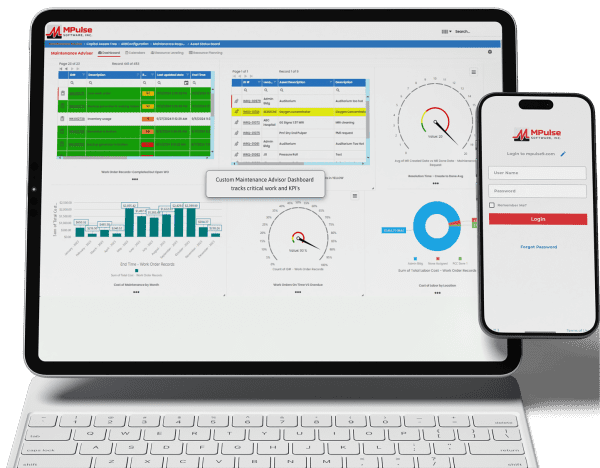
Maintenance teams face pressure to do more with fewer resources, but the top CMMS software platforms in 2026 are meeting the challenge. Today’s leading solutions go beyond basic work order tracking, providing preventive and predictive maintenance, real-time asset insights, mobile-friendly design, and data-driven reporting to support smarter, more proactive operations. Whether your team manages a single facility or a global asset portfolio, modern CMMS platforms improve reliability, reduce downtime, and gain clear insight into maintenance performance. As a result, finding the right software choice serves as the foundation for the year ahead. Whether you’re moving away from spreadsheets or replacing an existing system, this comparison highlights several of today’s leading CMMS solutions to help you find the right fit. 1. MPulse CMMS MPulse CMMS stands out as a flexible, enterprise-ready solution designed to support proactive maintenance strategies across a wide range of industries. Top features include comprehensive asset management through a centralized system that captures asset details, maintenance histories, warranties, and documentation. All this data links directly to work orders, parts, and schedules for full lifecycle visibility. Work order management is straightforward, with easy creation, scheduling, and tracking supported by automated alerts and maintenance calendars. Preventive and predictive maintenance capabilities allow teams to schedule work based on time, usage, or condition data, with optional integrations supporting predictive initiatives. Inventory and purchasing tools help track spare parts, monitor stock levels, and automate purchasing to avoid downtime caused by missing components. Reporting and dashboards provide clear insights into KPIs, costs, and performance metrics, while integrations with ERP, accounting, and other business systems support scalable, connected operations. Biggest Benefit of MPulse CMMS = Adaptability MPulse’s biggest benefit lies in its ability to adapt to organizations of all sizes while improving asset reliability and reducing downtime. The customizable design supports industries ranging from manufacturing and utilities to healthcare, education, and government facilities. MPACT runs in the cloud, so there is nothing to install and nothing for IT to patch, and it meets the compliance needs of regulated industries. Its per-user licensing covers the people who plan and perform maintenance, while requesters are unlimited and free, which keeps costs under control for teams that work in shifts or take requests from many departments. MPulse CMMS User Reviews Users frequently praise MPulse for balancing depth and usability. Many note that its strong reporting tools and flexibility make it a long-term solution rather than a system teams quickly outgrow. Reviewers also recommend MPulse’s affordable implementation services to speed adoption and ensure success. Users praised MPulse for: MPulse has allowed us to track hundreds of assets across multiple types and accurately schedule maintenance for those assets. Before MPulse, our preventive maintenance simply didn’t get done, and our spare parts inventory tracking was stuck in the stone age. We were never sure what parts we had or where to find them. Now we’re able to track inventory accurately and always have the necessary spare parts on hand. – Caleb C. on Capterra MPulse makes it easy to track assets and manage work orders and work order history. You can log machine hours and set hour-based work orders. – Vern B. on G2 For our campus, it made submitting requests easier for users, and they are able to receive email notifications based on the status of their work orders. Building users appreciate its ease of use when submitting requests to the Physical Plant. Maintenance staff can be held accountable for performance, and with preventive maintenance procedures being scheduled and completed, downtime for critical equipment has decreased. – Christopher B. on Capterra We’ve been using MPulse for the last four years and have no plans to stop. We appreciate how it helps us keep track of all our devices without relying on stacks of spreadsheets for updating, tracking, and monitoring. MPulse does the work for us. – Joel S. on Software Advice Strengths of MPulse CMMS Customers consistently give MPulse strong scores on Software Advice, with overall ratings around 4.5 out of 5 stars and an excellent user satisfaction rating of about 91%, meaning the vast majority of users would recommend it. Many users say MPulse substantially improves their maintenance operations by streamlining work order tracking, preventive maintenance, and asset management workflows. One verified reviewer described it as a “very comprehensive and complete CMMS” that they’re glad they chose after evaluating alternatives. Customers frequently emphasize responsive and helpful customer support, with numerous reviews pointing out how support staff assist quickly with questions or issues, helping keep operations moving. Another common positive theme is that once MPulse is properly configured, it can simplify tracking maintenance tasks, inventory, and historical data, freeing teams from paper logs or spreadsheets. Long-term customers like St. George Steel, IKEA US West, Reed College, and Northwell Health mention that MPulse “simplified keeping track of what we do” and that it’s easy to tailor the program to facility maintenance needs. Affordable Pricing MPACT is a cloud subscription priced per user. You pay for the people who plan and perform maintenance, and requesters are unlimited and free, which keeps costs predictable as more departments submit work requests. Current plans are listed on the MPACT pricing page, and a free demo and custom quote are available. 2. Maintenance Connection Maintenance Connection is a robust CMMS designed for organizations that need deep asset management, strong preventive maintenance capabilities, and enterprise-level scalability. The platform focuses on helping maintenance teams plan, track, and continuously improve their operations through data-driven decision-making. Key features include advanced work order management with configurable workflows, preventive and predictive maintenance scheduling based on time, meter readings, or condition data, and detailed asset tracking with full maintenance histories and documentation. Maintenance Connection also offers inventory and parts management, labor tracking, and comprehensive reporting tools that help teams analyze performance, costs, and compliance metrics. Mobile access enables technicians to receive assignments, update work orders, and access asset data in the field. User Reviews Organizations choose Maintenance Connection for its depth, configurability, and suitability for complex environments. The platform is suited for