

Calendar drag and drop scheduling lets you move a task, shift, or work order across a calendar grid by clicking and dragging it to a new date or time slot, instead of opening a form and picking values from menus. It works best when you need to see the ripple effects of a change instantly, such as rebalancing a technician’s week or shuffling a project timeline. If your schedule changes often or depends on constraints like skills or parts availability, direct manipulation beats a form every time. The checklist later in this guide will help you evaluate any tool against that need. For the definitions this article builds on, see the difference between scheduled, preventive, and planned maintenance.
TL;DR:
- Drag and drop scheduling allows instant testing of multiple task arrangements, but it increases placement attempts by about 22%, requiring more visual verification.
- Effective constraint validation at the moment of drop is essential to prevent scheduling conflicts related to certifications, parts availability, or capacity issues.
- Combining drag-and-drop with real-time validation and automated conflict warnings creates a risk-aware system suited for maintenance and field service operations.
- Tools lacking constraint validation tend to produce errors that are only discovered later, increasing operational risks and correction times.
- Automation should suggest minor adjustments with clear previews, enabling users to maintain control and trust over the rescheduling process.
Table of Contents
- What Is Calendar Drag and Drop Scheduling?
- Key Benefits and UX Trade-Offs (Research-Backed)
- Core Features to Look for in a Scheduling Tool
- How to Schedule and Reschedule With Drag and Drop
- How Should Automation Work With Drag and Drop?
- Common Pitfalls and Accessibility Checks
- The MPulse Perspective on Maintenance Scheduling
- Get Constraint-Aware Scheduling Without the Guesswork
- Considering Whether Drag-and-Drop Scheduling Fits Your Team
- Sources
- FAQ
What Is Calendar Drag and Drop Scheduling?
Drag and drop scheduling replaces multi-step forms with a single physical gesture. You grab a task with your cursor or finger, move it across the calendar grid, and release it on a new date, time, or resource lane. The system reads the drop location and updates the underlying record. Compare that to a dropdown planner, where you click a field, scroll through a list of dates or technicians, confirm a selection, and repeat for every attribute you need to change.
The difference isn’t cosmetic. According to research on interaction grammar differences between drag-and-drop and dropdown scheduling, the two approaches serve fundamentally different mental tasks. Dropdowns work well for a single, deliberate booking where you already know the answer. Drag and drop shines when you’re still figuring out the answer and want to test several options quickly.
That distinction shows up constantly in real scheduling work:
- Daily task planning: moving a personal to-do from Tuesday to Thursday because a meeting got added.
- Team dispatch boards: reassigning a field technician’s stop from one truck route to another when a job runs long.
- Maintenance work orders: shifting a preventive maintenance task off a production day when a line is running a rush order.
- Shift planning: swapping two employees between morning and evening shifts to cover a last-minute absence.
Each of these scenarios shares a trait: the scheduler needs to see the whole week or board at once, not just one appointment in isolation. That’s the core use case for a drag and drop planner. If you’re booking a single client appointment where the outcome is already decided, a dropdown or automatic calendar planner is often faster. If you’re juggling multiple moving pieces and want to try a few arrangements before committing, direct manipulation wins.
Key Benefits and UX Trade-Offs (Research-Backed)
The biggest advantage of drag and drop is speed of exploration. You can test three different placements for a task in the time it takes to fill out one form, which matters when a schedule has interdependent constraints like crew availability, equipment, and deadlines.
That speed comes with a measurable cost. Eye-tracking research on calendar scheduling interfaces found that drag interfaces produced more placement attempts than dropdown interfaces, and each additional placement attempt corresponded to roughly 56% more total fixation duration. In plain terms: dragging invites you to try again, and every retry demands more visual verification to confirm the new slot is correct.
The trade-off in numbers: Drag-and-drop scheduling generated about 22% more placement attempts than dropdown selection in pooled experiments, and each extra attempt added roughly 56% more fixation time as users re-verified the result, according to the same eye-tracking study.
That same research also found that calendar horizon, meaning how far into the future or how late into the evening a visible grid extends, affects where users end up placing tasks. When weekend or evening slots sit at the visible edge of a calendar, they get chosen less often and verified more carefully, simply because they’re harder to see and confirm.
Here’s how to weigh the trade-off for your own workflow:
- If your schedule changes multiple times a day and requires visual comparison, the extra fixation cost is worth paying. Speed of iteration outweighs the added verification work.
- If you’re locking in a single fixed appointment (a doctor’s visit, a one-time delivery window), a discrete picker avoids unnecessary re-checking.
- If your team frequently misreads drop targets near the edges of the visible calendar, look for a tool that expands the horizon or adds sticky date labels, not one that simply removes drag and drop.
The right answer isn’t “drag and drop is always better.” It’s matching the interaction to the task, which is exactly the policy decision the MDPI researchers describe interface designers as needing to make deliberately rather than by default.
Core Features to Look for in a Scheduling Tool
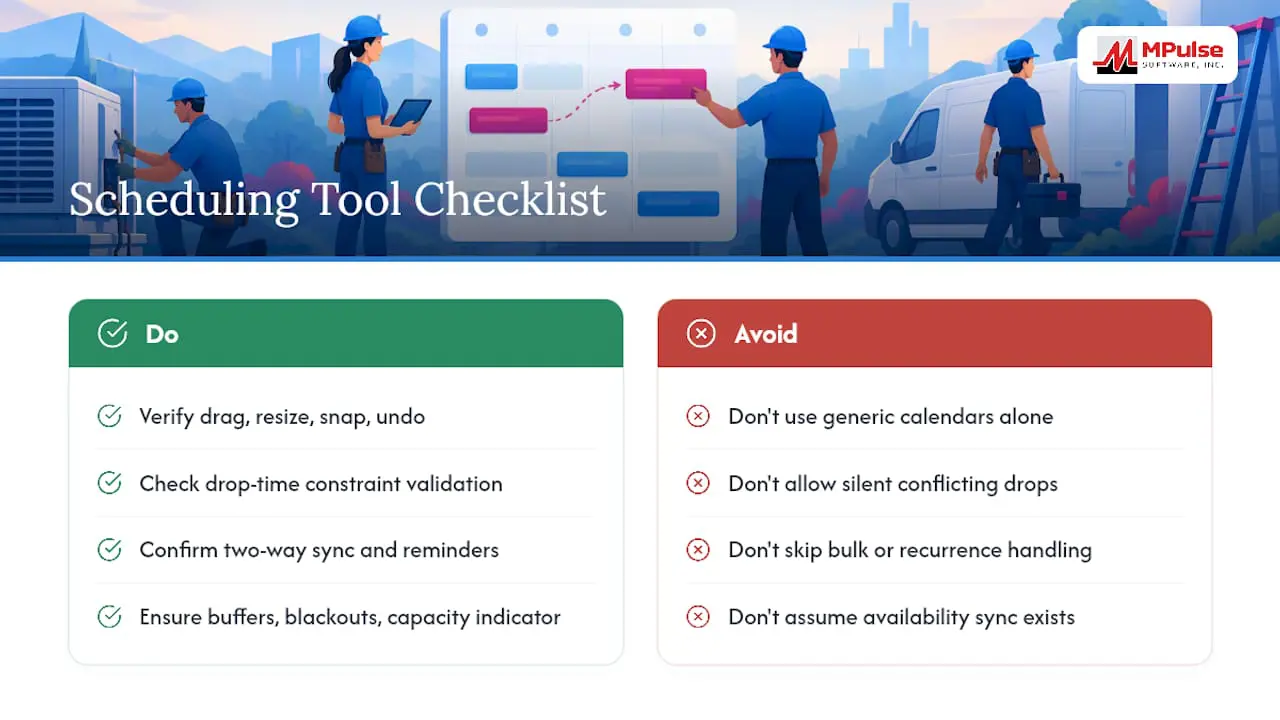
Not every calendar with drag support is built for real operational use. Before you commit to any event scheduling software, check it against the following capabilities.
1. Direct manipulation basics. The tool should support dragging a task to a new slot, resizing it by dragging an edge to change duration, and snapping to fixed time increments so nothing lands at an odd minute mark. It also needs a visible undo option, ideally a single keystroke, and multi-select so you can grab several tasks and move them together.
2. Constraint validation at drop time. This is where generic calendar apps fall short for field and maintenance work. A scheduling tool worth paying for checks, the instant you release a drag, whether the assigned person has the right certification, whether a truck can realistically reach the next stop, and whether the parts or materials a job needs are actually in stock. Without that check, you find out about the conflict after the shift has already started.
3. Integration and sync features. Two-way calendar sync keeps your scheduling tool and your team’s phone calendars showing the same reality. Mobile push notifications and reminders cut down on missed appointments, and research on business scheduling software identifies real-time availability syncing and automated reminders as the features that most reduce coordination overhead. Bulk-shift tools and recurrence handling matter too. Rescheduling a recurring weekly inspection shouldn’t mean editing 52 individual entries.
4. Operational controls. Look for configurable buffers between jobs, blackout windows for holidays or shutdowns, and a capacity indicator that shows at a glance whether a technician or team is overbooked before you finalize a drop. MPulse Software’s resource leveling tools address this exact gap by flagging overallocation before it becomes a scheduling conflict on the floor.
Pro Tip: Test any scheduling tool’s conflict detection by intentionally dragging a task into a slot you know creates a problem, like assigning a job to someone without the right certification. If the system lets the drop happen silently, that’s a warning sign you’ll be cleaning up scheduling errors by hand later.
How to Schedule and Reschedule With Drag and Drop
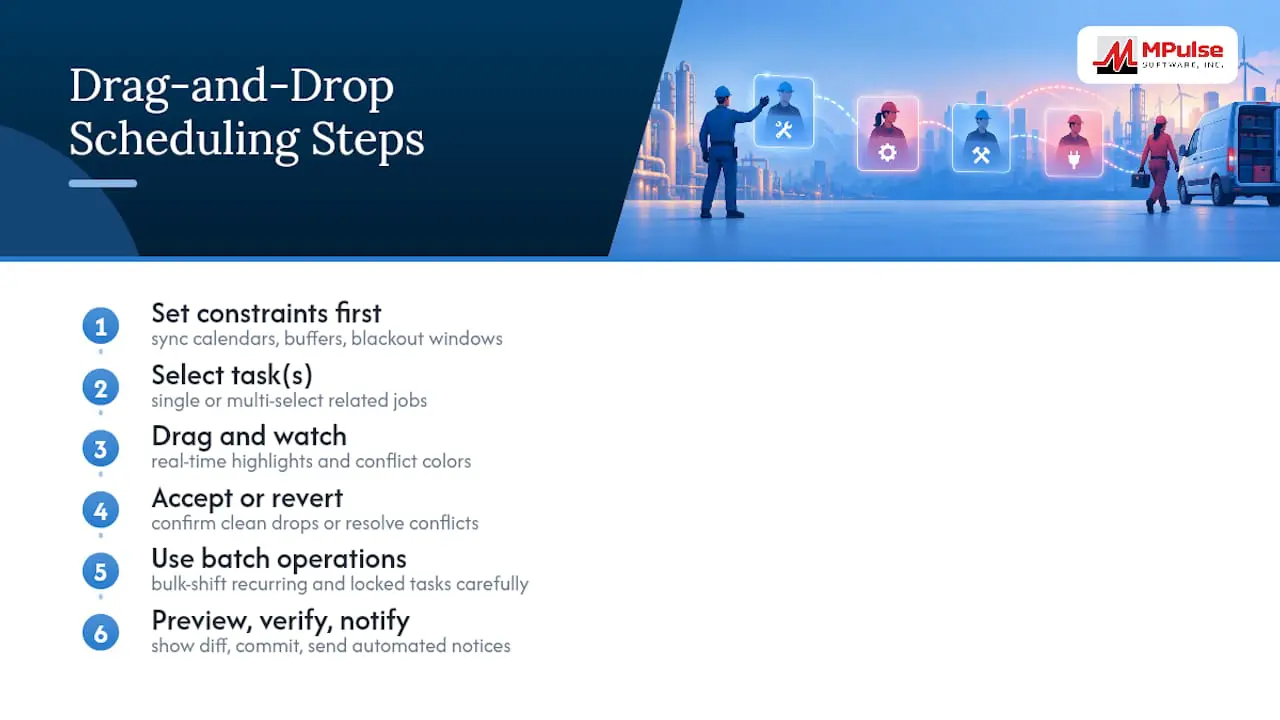
Getting real value out of calendar drag and drop scheduling depends less on the tool and more on the workflow you build around it. Here’s a repeatable process.
1. Set up your constraints before you start dragging. Sync your team’s calendars first, so the tool reflects actual availability rather than a stale export. Define buffers between appointments (fifteen minutes, an hour, whatever your work realistically needs) and mark blackout windows for holidays, plant shutdowns, or mandatory training days. Skipping this step is the single most common reason drag and drop scheduling produces a mess: the interface will happily let you drop a task into a slot that violates a rule nobody told it about.
2. Select the task or tasks you’re moving. Click a single work order to reposition it, or use multi-select to grab a cluster of related tasks, such as every stop on a technician’s route for the day.
3. Drag to a candidate slot and watch the conflict indicators. A well-built tool highlights the target slot in real time as you drag, often with a color change if a rule is violated, before you even release the mouse button.
4. Accept the suggestion or revert. If the drop is clean, release and confirm. If the indicator flags a conflict, either snap back to the original position or resolve the flagged issue (reassign a certification, add a buffer) before retrying.
5. Use batch operations for repeated changes. If a snowstorm cancels a full day of field visits, bulk-shift lets you move every affected job to the next open slot in one action instead of dragging each one individually. Recurring tasks and locked events (a signed-off compliance inspection, for instance) need special handling here. The tool should ask whether a change to a recurring task applies to just that instance or to the whole series, and it should refuse to move a locked event without an explicit override.
6. Preview before you commit. The best tools show a diff, meaning a before-and-after summary, so you can see exactly what changed across a batch move before it goes live. This matters most when you’ve just bulk-shifted twenty tasks and want to sanity-check the result in ten seconds rather than twenty individual clicks.
7. Verify and notify. Once you commit a change, automated notifications should reach every affected person: the technician whose shift moved, the client whose appointment shifted, the supervisor who needs to know a maintenance window changed. MPulse Software’s guide to CMMS calendar management covers several of these habits in more detail for maintenance-specific scheduling, including how to structure recurring preventive tasks so they survive a bulk reschedule cleanly.
This workflow scales from a single freelancer managing client sessions to a multi-site maintenance team juggling hundreds of weekly work orders. The steps don’t change. Only the volume does.
How Should Automation Work With Drag and Drop?
The safest automation model for scheduling tools is what researchers call mixed-initiative design: the system suggests, the person decides. Full auto-reschedule, where software silently reassigns tasks without asking, tends to erode trust fast, especially in operations where a missed constraint has real consequences.
Research on mixed-initiative scheduling found that conservative suggestions, meaning small, temporal nudges that resolve a conflict without reshuffling the whole board, keep users in control while still solving the problem. A system that shifts a task fifteen minutes to eliminate an overlap is doing its job. A system that quietly moves ten unrelated tasks to make room is not.
In practice, that means:
- Automation should propose minor shifts to fix double-bookings, not reorganize a whole day unprompted.
- Any suggested change needs a visible preview, showing exactly what moves and by how much, before it takes effect.
- The user approves or rejects the suggestion. The system never applies it silently.
- Changed tasks should be visually highlighted, so a planner scanning the board can spot what the automation touched in one glance.
This is the same “suggest, don’t override” principle that separates a helpful automatic calendar planner from one that generates more cleanup work than it saves.
Pro Tip: If a scheduling tool advertises “smart auto-scheduling,” ask specifically whether it shows a preview before committing a change or applies it in the background. That one question tells you whether you’re getting mixed-initiative help or a black box you’ll have to audit later.
Common Pitfalls and Accessibility Checks
Drag and drop scheduling fails in predictable ways, and most of them are avoidable with the right checks.
The most common pitfall is missing constraint validation. A calendar that lets you drop a task into an impossible slot, no certification check, no travel-time check, no parts-availability check, just shifts the error downstream to whoever discovers it on the job site. The second is technical: poorly built calendar components lose your scroll position every time you drag an item, which forces you to re-locate where you were on a long weekly board after every single move. The third is the misdrag: a shaky cursor or a small touch target drops a task one row off from where you intended, silently creating a double-booking nobody notices until it’s too late.
Before adopting any tool, run through this list:
- Does the calendar preserve your scroll position after a drag, rather than snapping back to the top?
- Are touch targets large enough for mobile use without accidental drops, particularly on a phone screen in the field?
- Is there a keyboard-accessible alternative to dragging, so users who can’t use a mouse or touchscreen can still reschedule a task?
- Does every draggable item have a clear focus state, so screen-reader and keyboard users know exactly what’s selected?
- Does the system show an instant conflict warning, ideally with a capacity gauge, the moment a drop creates a problem?
- Is there a reliable undo or snap-back if a drop was accidental?
Tools that pass these checks tend to rely on constraint validation built into the scheduling engine itself, not just the visual interface, and use re-staggering logic to automatically nudge overlapping tasks apart rather than letting them stack invisibly.
The MPulse Perspective on Maintenance Scheduling
Drag and drop scheduling earns its keep in maintenance and field service precisely because the stakes of a bad drop are higher than in a personal calendar. Assign a preventive maintenance task to a technician without the right certification, or schedule a job that needs a part still sitting in a purchase order, and you don’t just lose time. You risk a compliance gap or an unplanned breakdown.
That’s the problem MPulse CMMS was built around. The platform combines preventive maintenance automation with real-time performance monitoring, so a schedule change on the calendar reflects immediately in the metrics operations teams actually watch. Its calendar interface is designed to feel intuitive to planners who are used to dragging tasks around a board, while still validating the constraints, certifications, compliance windows, part availability, that generic calendar apps ignore. That combination matters most for multi-site operations, where a scheduling mistake at one facility can cascade into a compliance issue that a regional manager doesn’t see until an audit.
Those results come from pairing the drag-and-drop convenience discussed throughout this guide with the constraint-aware backend that field maintenance work actually requires.
Get Constraint-Aware Scheduling Without the Guesswork
If you’ve been comparing generic calendar apps against something purpose-built for maintenance and field operations, the gap usually shows up the first time a drag-and-drop move needs to check a certification or a parts inventory in the background. MPulse Software closes that gap: its calendar management tools pair the direct-manipulation speed this guide covers with constraint validation built for compliance-heavy, multi-site operations.

For teams coordinating field technicians and dispatch boards, the service scheduling software ties calendar moves directly to work orders, so a dragged task updates the record instead of living as a separate to-do. Teams evaluating implementation support can also look at Equinox Strategies for automation guidance as part of a broader rollout plan. Plans start with Professional at $29 per month per user and Advanced at $79 per month per user, with a Technician License and Enterprise Add-Ons available for larger deployments, all detailed on the pricing page. Ready to see how it handles your actual schedule? Reach out through the implementation and support services page to request a demo and talk through your specific compliance and multi-site requirements.
Considering Whether Drag-and-Drop Scheduling Fits Your Team
The conventional pitch for drag and drop scheduling treats it as an unambiguous upgrade over forms and dropdowns, faster, more visual, more modern. The research doesn’t fully support that framing, and I think that gap is worth sitting with. Drag and drop trades deliberation for speed, and that trade costs real attention: the fixation-duration data on repeated placement attempts shows that every extra try you take at dragging a task somewhere isn’t free. It’s a cognitive cost, even if it feels effortless in the moment.
What gets underestimated is how much that cost depends on what’s underneath the interface. A drag-and-drop calendar with no constraint validation is just a faster way to create scheduling mistakes. A drag-and-drop calendar that checks certifications, parts, and capacity at the moment of the drop turns that same speed into a genuine advantage, because you’re iterating quickly toward a valid answer instead of iterating quickly toward a mess someone has to fix on Monday morning. The interface gesture is the same in both cases. The difference is entirely in the engine behind it.
That’s why I’d push back on any advice that treats “does it have drag and drop” as the deciding question when you’re evaluating scheduling tools. The better question is what happens the instant you let go of the mouse. If nothing checks the drop, you’ve bought a nicer-looking spreadsheet. If something validates it in real time, you’ve bought a planning tool.
— Mark
Sources
- Calendar horizon as a boundary affordance: an attempt-centric eye-tracking analysis of calendar scheduling interfaces
- Interaction grammar differences between drag-and-drop and dropdown scheduling (MDPI)
- Mixed-initiative scheduling and conservative suggestion patterns
- I evaluated the best business scheduling software for 2026 (G2)
FAQ
What Is the Best Calendar Scheduling Tool?
There isn’t one universal answer. The best tool depends on whether you need constraint-aware scheduling for field or maintenance work, in which case a CMMS calendar like MPulse’s calendar management feature is built for that, or simple personal appointment booking, where a lighter dropdown-based tool works fine.
Does Microsoft 365 Have a Calendar Scheduling Tool?
Yes, Microsoft tools such as Outlook Calendar and Microsoft Bookings support basic drag-and-drop rescheduling and appointment booking. Neither tool validates operational constraints like technician certifications or parts availability, which is why maintenance and field service teams often pair them with, or replace them with, a dedicated CMMS.
Can ChatGPT Organize My Calendar?
ChatGPT can help you draft a schedule, summarize availability, or suggest time blocks based on information you provide, but it doesn’t directly manipulate a live calendar or validate real-world constraints like part inventory or technician certification unless it’s connected to a scheduling tool through an integration. Treat it as a planning assistant, not a scheduling system of record.
What Is the Best Free Shift Calendar App?
Several free calendar apps support basic shift scheduling and drag-and-drop rescheduling for small teams, but most lack constraint validation, conflict detection tied to certifications, or integration with work order systems. For teams with compliance requirements or multi-site operations, a dedicated tool with built-in validation, like MPulse’s service scheduling software, typically pays for itself by catching conflicts before they become downtime.