

A CMMS calendar centralizes every planned and unplanned task in one view, automates recurring preventive maintenance through interval and trigger rules, and lets planners drag and drop assignments to level technician capacity. Used correctly, it cuts downtime and stops schedule conflicts before they hit the floor. MPulse CMMS is built around this kind of calendar as its planning hub, and teams that adopt it typically see measurable gains in on-time completion and technician utilization.
TL;DR:
- Drag-and-drop rescheduling preserves task duration and requires manual confirmation to ensure cascaded or linked tasks move correctly.
- Blocking slots should be used for shutdowns, training, and holidays, with clear documentation to prevent accidental overbooking or scheduling conflicts.
- Capacity overlays and Gantt views help identify overloads across teams early, enabling proactive reallocation before potential downtime.
- Automated triggers from ERP, IoT sensors, and usage data keep the calendar accurate, while notifications alert technicians and managers to new or overdue work.
- Regular calendar hygiene checks, including verifying recurring rules and clearing expired blocks, prevent schedule drift and ensure reliable maintenance planning.
Table of Contents
- What Does a CMMS Calendar View Actually Show You?
- How Do You Schedule New Tasks and Recurring PMs?
- Why Drag-And-Drop Rescheduling Needs Guardrails
- How Do You Block Time for Shutdowns, Training, and Holidays?
- How Do You Balance Workload With Resource and Gantt Views?
- What Triggers and Notifications Keep the Calendar Accurate?
- Weekly and Monthly Calendar Hygiene Checks
- How Do You Handle Emergency Work Without Blowing Up the Schedule?
- Can Field Technicians Use the Calendar From Their Phones?
- Who Should Have Access to Change the Calendar?
- Does Calendar Scheduling Actually Reduce Downtime?
- From Passive Viewer to Active Planner
- Let MPulse Put Your Calendar to Work
- Sources
- FAQ
What Does a CMMS Calendar View Actually Show You?
A working CMMS calendar gives you month, week, and day modes, each suited to a different planning horizon. Month view is for spotting PM density and vacation gaps. Week view is where most scheduling decisions actually happen. Day view is for a supervisor checking who is where at 9 a.m.
A well-built calendar, similar to what’s described in Infodeck’s calendar documentation, also gives you controls beyond the grid itself:
- Location and skill filters, so you can isolate a single building, production line, or trade
- A planned versus generated toggle, letting you preview upcoming recurring work before it becomes a live work order
- Click-to-create shortcuts, so a planner can drop a new work order directly on an open slot instead of building it from a blank form
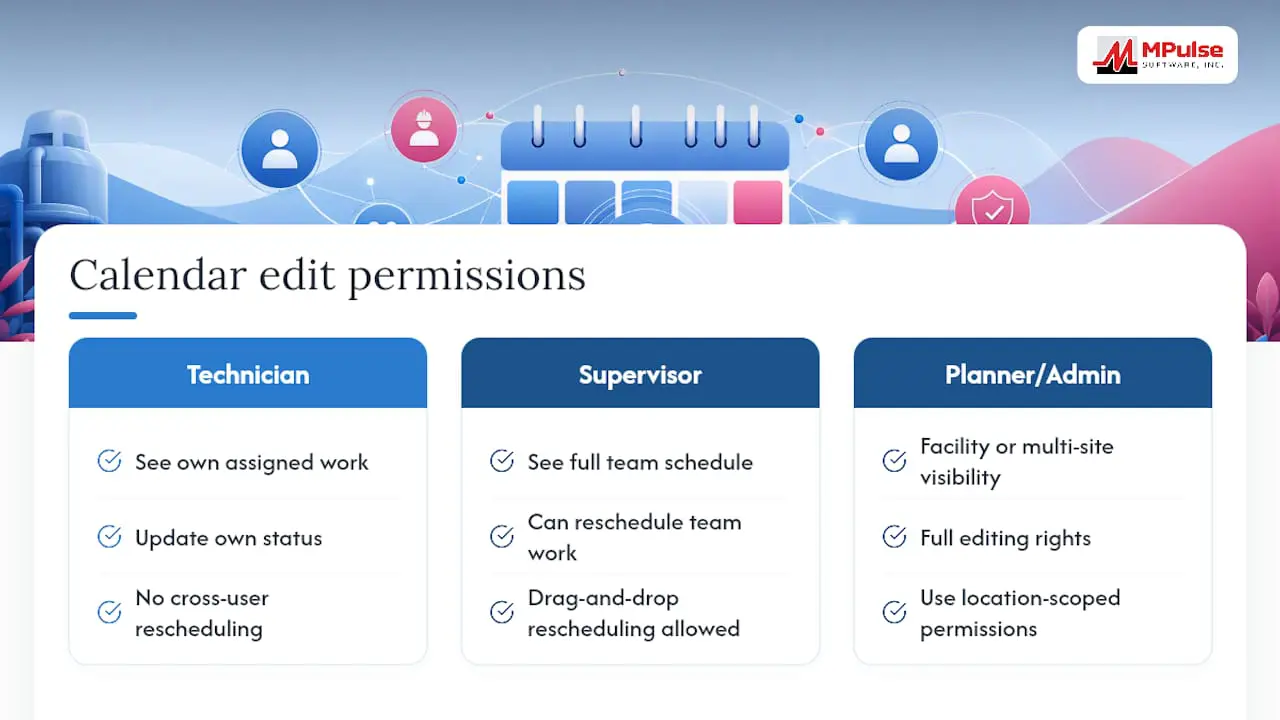
- Permission-based visibility, where technicians see their own assignments and supervisors see the full crew
Role settings also determine who can drag items around. A technician might view their day but not move a work order; a planner can reschedule freely.
How Do You Schedule New Tasks and Recurring PMs?
Creating a single work order from the calendar follows a predictable sequence, and getting the order right saves rework later.
- Select the asset or component the work applies to.
- Choose the work type (inspection, lubrication, calibration, repair).
- Assign a technician or crew based on skill and availability.
- Set estimated duration so the calendar block reflects real time, not a guess.
- Set priority, which determines how the task competes for slots during a busy week.
Recurring preventive maintenance works differently. Calendar intervals (every 30 days, every quarter) fit predictable, time-based tasks like filter changes. Meter or condition triggers fit equipment where usage varies, such as generating the next oil change off engine hours rather than the calendar date. Mixing both approaches across a facility is normal; the IFS maintenance plan documentation treats time, meter, and condition triggers as parallel inputs into the same plan.
Two settings decide how flexible those intervals behave: Based on Performed Date recalculates the next due date from whenever the work actually closed, while Adjust if Done Early/Late either holds the original schedule or shifts it. For strict compliance tasks, keep the original interval fixed. For wear-based tasks, letting the date shift with actual completion usually tracks reality better.
Why Drag-And-Drop Rescheduling Needs Guardrails
Dragging a work order to a new day moves the start and due date by the same offset and keeps the original duration intact, a behavior confirmed in Infodeck’s calendar documentation. A four-hour task dragged from Tuesday to Thursday stays a four-hour task on Thursday. That consistency is what makes drag-and-drop safe for quick replanning instead of a guessing game.
Multi-day work orders and linked tasks complicate that simplicity. Moving the first step of a sequenced shutdown procedure should cascade the dependent steps forward, not leave them stranded on the original date. Most platforms handle this automatically, but you still need to check the result rather than assume it.
Recurring items carry their own exception: dragging one occurrence usually only edits that instance, not the underlying recurrence rule. To change the pattern itself, you generally have to edit the maintenance plan or work-order template directly.
- Drag moves preserve duration and shift both start and due dates equally.
- Cascading updates protect linked or multi-day sequences, but confirm the shift actually applied.
- Recurring work orders often need editing at the template level, not the calendar cell.
Pro Tip: Before a big reschedule week, export or screenshot the current calendar. If a cascade behaves unexpectedly, you want a reference point to compare against, not a memory of what it looked like an hour ago.
Left unchecked, small early or late completions compound. That’s calendar drift, and it’s the reason “based on performed date” needs a documented policy rather than default behavior, according to IFS’s guidance on maintenance plans.
How Do You Block Time for Shutdowns, Training, and Holidays?
Not everything on a calendar is a work order. Blocked slots, calendar events, and notes each serve a different function, and CMMS platforms generally distinguish between them the way described in this calendar-blocking reference. A blocked slot actually reserves capacity and prevents new assignments landing in that window. An event marks something happening (a shutdown, an audit) without necessarily locking capacity. A note is just a visible reminder with no scheduling effect.
To create a blocked slot correctly:
- Select the time range and the location or crew affected.
- Record a reason code (planned shutdown, training, holiday, weather closure).
- Assign an owner responsible for lifting the block when it ends.
- Link the affected asset or line so downstream reports show why nothing was scheduled.
A plant shutting down a packaging line for annual training should block that line’s capacity for the full window, not just note it. Without the block, the calendar will happily assign a technician to a line that no longer exists for the day, and someone finds out the hard way.
How Do You Balance Workload With Resource and Gantt Views?
Capacity overlays turn a calendar from a task list into a planning tool. A single technician showing ten hours of assigned work on an eight-hour shift is an overload signal you should catch before the week starts, not during it.
Resource or Gantt-style views make that overload visible across a whole crew at once, letting you compare workloads side by side instead of clicking through individual days. Reliability guidance from Fluke Reliability frames this shift, from passively viewing a schedule to actively managing it, as the difference that actually improves uptime.
Practical leveling steps:
- Identify overloaded days by scanning total assigned hours per technician, not just task count.
- Reassign lower-priority PMs to technicians with open capacity before the week begins.
- Stagger recurring tasks that happen to cluster on the same date purely by coincidence of interval math.
- Cross-reference shift schedules so night-shift capacity isn’t sitting empty while day shift drowns.
Multi-site operations benefit even more from this view, since a Gantt comparison can reveal that Site A is overbooked while Site B has idle hands the same week. Resource planning dashboards built for this purpose make that comparison a matter of minutes, not a spreadsheet exercise.
What Triggers and Notifications Keep the Calendar Accurate?
A calendar is only as current as the triggers feeding it. Three trigger types cover most facilities: fixed calendar intervals for routine PMs, meter or usage triggers for equipment that wears based on runtime, and condition-based alerts from IoT sensors flagging vibration, temperature, or pressure outside normal range.
ERP and asset-management integrations matter here because they keep the calendar populated without manual re-entry. An asset transferred between locations in the ERP should show up correctly on the calendar without someone updating two systems by hand.
Notification rules close the loop:
- Assigned technicians get alerted when a new work order lands on their calendar, not just when it’s due.
- Supervisors get a daily digest of overdue or at-risk items rather than a flood of every single change.
- Parts or inventory teams get notified when a scheduled job requires stock that isn’t currently on hand.
Without that notification layer, a perfectly scheduled calendar still fails, because nobody outside the planner’s screen knows it exists.
Weekly and Monthly Calendar Hygiene Checks
Calendars decay quietly. A recurring PM rule with the wrong interval, a blocked slot nobody removed, a technician assignment that never got confirmed. None of it looks urgent until it’s overdue.
- Weekly: Confirm every assignment for the coming week actually has a technician attached, not just a placeholder.
- Weekly: Check parts and consumables availability against scheduled jobs so a technician isn’t standing at an empty parts bin.
- Weekly: Clear expired blocked slots that should have been released after a shutdown or training window ended.
- Monthly: Audit recurring PM rules against actual equipment usage to confirm intervals still make sense.
- Monthly: Review the effects of your calendar correction settings; if due dates have drifted noticeably from the original plan, revisit “based on performed date” choices.
- Monthly: Keep a registry of all blocked dates and circulate it to affected teams so nobody schedules around a shutdown they didn’t know about.
Facilities that treat this as a standing task, not a fire drill, tend to catch problems while they’re still cheap to fix. MPulse Software’s own guidance on calendar management tips covers several of these checks in more detail.
How Do You Handle Emergency Work Without Blowing Up the Schedule?
Emergency work orders don’t wait for an open calendar slot, and pretending they will is how a planned schedule falls apart by Wednesday. The practical approach is to treat emergencies as a separate priority tier that can displace but not erase planned work.
When an urgent breakdown comes in, the first move is triage: does it need a technician immediately, or can it wait until the current assignment finishes? If it needs immediate attention, the calendar should let you insert it and see, in real time, what planned work just got bumped. That visibility matters more than the insertion itself. A planner who can see exactly which PM got pushed to tomorrow can make an informed call about whether that’s acceptable or whether it needs reassignment to another technician instead of a flat delay.

Some facilities reserve a small block of unassigned capacity each day specifically for this. Rather than double-booking a fully scheduled technician, an emergency lands in the open slot first. It’s a small sacrifice in daily utilization that pays for itself the first week a critical asset goes down mid-shift.
The task that gets bumped also needs a clear path back onto the calendar, not just silent removal. Whether a displaced PM gets rescheduled for the next open slot or rolled to the next occurrence should follow a defined rule, not a mid-shift decision made under pressure. Documenting that rule ahead of time keeps emergency response from quietly eroding your preventive maintenance compliance one incident at a time.
Can Field Technicians Use the Calendar From Their Phones?
Mobile access turns the CMMS calendar from a planner’s tool into a shared operational picture. A technician standing at an asset with a tablet or phone should see their day’s assignments, the asset’s history, and any parts needed, without walking back to an office terminal.
Practically, mobile calendar views tend to simplify to a day-focused list rather than a full month grid, since that’s what fits a phone screen and what a technician actually needs mid-shift. Status updates, completion notes, and photos captured on-site sync back to the central calendar, which is what lets a planner see real-time progress instead of waiting for an end-of-day report.
Barcode scanning ties directly into this. A technician scanning an asset tag on a factory floor can pull up that asset’s scheduled work directly, confirming they’re servicing the right unit against the right work order rather than working from memory or a printed list.
Offline capability matters more than it sounds. Facilities with weak signal in basements, warehouses, or remote sites need a mobile app that queues updates locally and syncs once connectivity returns, rather than losing a technician’s completed work entirely. This is worth checking specifically during any CMMS evaluation, since not every mobile app handles it the same way.
Who Should Have Access to Change the Calendar?
Role-based permissions keep a shared calendar from turning into a free-for-all where anyone can move anyone’s assignment. Most CMMS platforms structure this in tiers: technicians see and update their own assigned work, supervisors see and adjust their team’s full schedule, and planners or administrators have facility-wide or multi-site visibility with full editing rights.
That separation isn’t just about control for its own sake. A technician who can drag their own work order to a different day without approval can quietly undermine a carefully leveled schedule, moving an overloaded Tuesday’s problem onto an already-busy Thursday. Locking drag-and-drop rescheduling to supervisor and planner roles, while leaving status updates open to technicians, tends to strike the right balance.
Compliance-driven industries add another layer. Regulatory recordkeeping often requires an audit trail showing who created, modified, or approved a scheduled task, not just that it happened. Permission structures that log every calendar change, not just the final state, matter considerably more once an inspector asks for that history.
Multi-site organizations typically need location-scoped permissions on top of role-scoped ones, so a planner at one facility isn’t accidentally rescheduling work at a site three states away. Getting this configuration right during setup, rather than fixing it after someone reschedules the wrong site’s shutdown, saves a genuinely awkward conversation later.
Does Calendar Scheduling Actually Reduce Downtime?
The link between calendar discipline and downtime isn’t abstract. A preventive task that slips because nobody caught a scheduling conflict is a failure waiting to happen; a technician sitting idle because the calendar double-booked someone else is wasted capacity that never gets reclaimed. Both problems trace back to the same root: a calendar that isn’t actively managed.
Facilities that shift from reactive scheduling to calendar-first planning tend to see the change show up in a handful of concrete metrics. Mean time to schedule (how long a work request sits before it’s assigned a slot) tends to shrink once click-to-create and templated recurring work remove the manual setup step. Technician utilization, measured as scheduled hours against available hours, improves once capacity overlays catch overloads before they happen instead of after a missed SLA. Compliance-critical PM completion rates, particularly relevant for regulated industries tracking audit readiness, benefit directly from interval rules that don’t silently drift.
MPulse Software’s own guidance on maintenance scheduling points to this pattern directly: better scheduling discipline correlates with fewer unplanned outages, because more of the work that would have become an emergency gets caught during a routine PM instead. That’s the practical payoff of treating the calendar as infrastructure rather than a to-do list.
From Passive Viewer to Active Planner
Most planners start by checking the calendar. The better habit is using it to make decisions before problems surface, blocking known shutdowns weeks ahead, building recurring PM templates instead of rebuilding tasks from scratch, and leveling assignments before a technician’s week fills up unevenly.
MPulse Software has documented this shift among its customer base, with proof points showing measurable gains once teams stop reacting and start planning through the calendar. If you adopt this approach, track a small set of KPIs: mean time to schedule, PM compliance rate, and technician utilization. Those three numbers will tell you within a quarter whether the calendar is actually driving decisions or just recording them.
— Mark
Let MPulse Put Your Calendar to Work
MPulse Software gives planners an intuitive calendar dashboard built for exactly the workflow this guide walks through, not a bolted-on scheduling tab. It centralizes recurring PM rules, blocked slots, technician capacity, and emergency work in one view, and it connects to your existing ERP or IoT sensors through the DataLink Integration Adapter so triggers populate the calendar automatically instead of through manual entry.
If workload leveling is your main pain point, the Resource Planning Dashboard gives you the Gantt-style capacity overlays covered above without needing a separate tool. Teams that need help configuring interval rules, calendar correction settings, or role permissions correctly from day one can lean on CMMS Implementation Services rather than working it out through trial and error.
Pricing starts with the Professional plan at $29 per month per user, with an Advanced tier at $79 per month per user for teams that need deeper reporting and configuration options. Check the pricing page for full plan details, or reach out for a demo to see the calendar workflow running against your own asset list before you commit.
Sources
For technical specifics on calendar correction and interval math, see IFS’s interval-based maintenance documentation, which explains due-date recalculation, and Infodeck’s calendar documentation for drag-and-drop and filter behavior.
FAQ
What Is the Most Widely Used CMMS Software?
There’s no single dominant platform; adoption varies heavily by industry, facility size, and compliance needs. MPulse CMMS is used by over 3,500 organizations globally and is a common choice for facilities that need calendar-first scheduling alongside compliance recordkeeping.
Is a CMMS the Same Thing as SAP?
No. SAP is a broad ERP system covering finance, supply chain, and operations across an entire enterprise, while a CMMS is purpose-built for maintenance scheduling, work orders, and asset tracking. Many facilities run both, connecting their CMMS calendar to SAP or another ERP through an integration adapter so asset and inventory data stays synchronized.
What Are Calendar Management Tools in a CMMS?
Calendar management tools are the filters, views, and scheduling controls that let planners see work by day, week, or month, block time for shutdowns or training, and drag tasks to new dates without rebuilding them. They typically include recurring interval rules and calendar correction settings that control how due dates shift after early or late completions.
Which CMMS Software Is Best for Maintenance Scheduling?
The right choice depends on your facility’s size, compliance requirements, and integration needs, but platforms with a genuinely intuitive calendar interface, like MPulse CMMS, tend to reduce the learning curve for new planners significantly. Look for click-to-create work orders, drag-and-drop rescheduling, capacity overlays, and configurable calendar correction rules as the baseline feature set.
How Does Calendar Correction Prevent Scheduling Drift?
Calendar correction settings, like “based on performed date” and “adjust if done early or late,” determine whether a task’s next due date shifts based on when it was actually completed. Using these settings deliberately, rather than by default, keeps recurring PM schedules from gradually drifting away from their intended intervals.