

Calendars are a huge part of the maintenance operations management field—from safety inspections to planned maintenance tasks to staff schedules.
MPulse’s Calendar Management tool uses customized and filtered schedules to make sure your team knows what needs to be done, and by when. MPulse lets you create CMMS calendars for anything. There’s no limit to the number or type of calendar views you can have.
MPulse Calendars can be customized and filtered. Drag-and-drop capability lets you reschedule in a flash, and you can view calendars by month, week, or day. Plus, MPulse Calendars work seamlessly with our maintenance work order and preventive maintenance tools.
Let’s learn how.
Step 1: Add a Calendar or Find an Existing Calendar
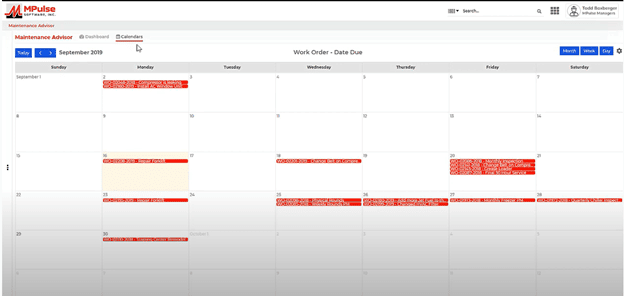
MPulse makes it easy to find your calendars or create new ones. You can find the Calendar tab at the top of the screen on your Dashboard as soon as you log in.
Start by choosing the Settings icon in the top right-hand corner of the screen.
Step 2: Create or Edit Calendars
You have several options to create, edit, manage your calendars.
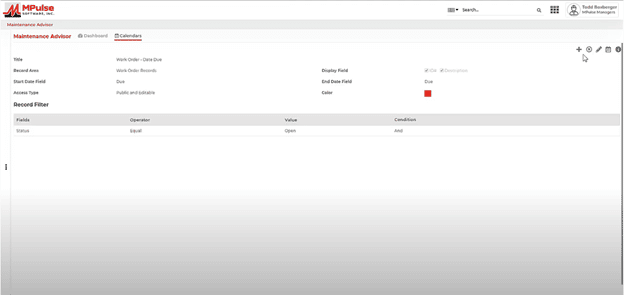
Choose the one you need from the right-hand corner of your screen. They include:
- Add
- Delete
- Edit
- Preview
- Information
Step 3: Customize Your Calendar
MPulse lets you create CMMS calendars for anything—work order due dates, preventive maintenance, warranty expiration, employees or vendors, task type, completion dates, and much more.

Customize the fields to reflect what you want your calendar to show.
When you’re done, click Save. Then click Preview to view your calendar.
Step 4: View Your Calendars
On the left-hand side of your screen, you’ll see a list of all your calendars in a collapsible window. Note that you can display one calendar or more than one at a time.
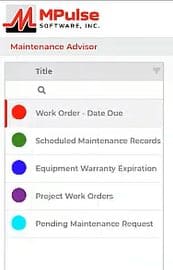
View calendars by month, week, or day. Plus, there’s no limit to the number or type of calendar views.
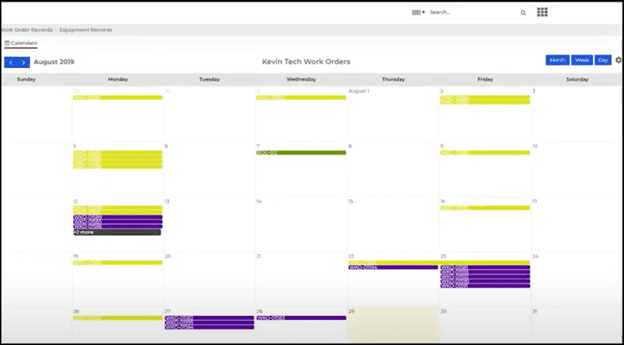
Note, you can drag and drop tasks right from your calendar view to reschedule. No need to go find the work order. You also can set up automated scheduling for tasks or meetings, as well as quickly add tasks and other deadlines on the fly.
Visualizing your team’s week or month with a maintenance calendar gives you a really good idea about how to get high priority work done quickly, while making sure lower priority work doesn’t slip through the cracks.
You’ll always see what’s coming up in your MPulse calendars, so your team is ready to go when the time is right. See also: Five Ways MPulse Can Help You Reduce Downtime.
How could a calendar view in your CMMS software help your maintenance operations? Leave a comment or contact us.