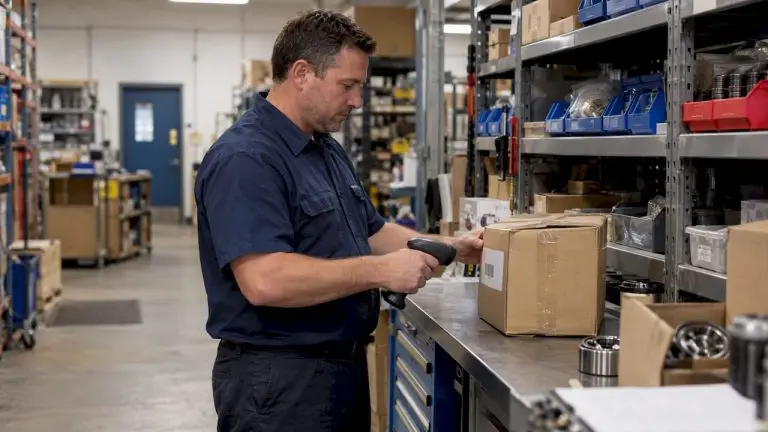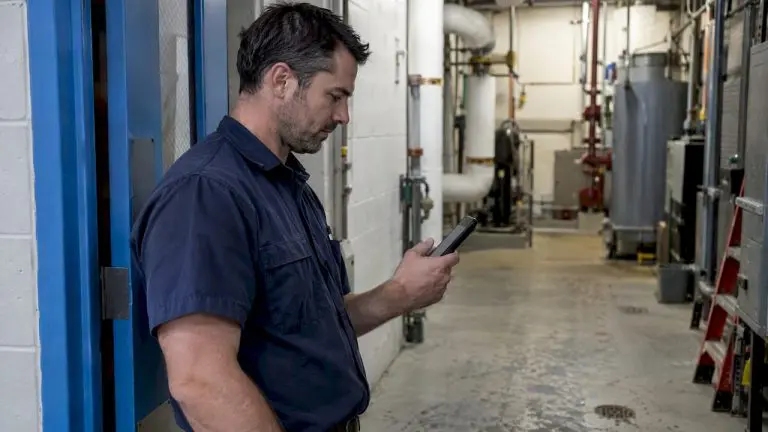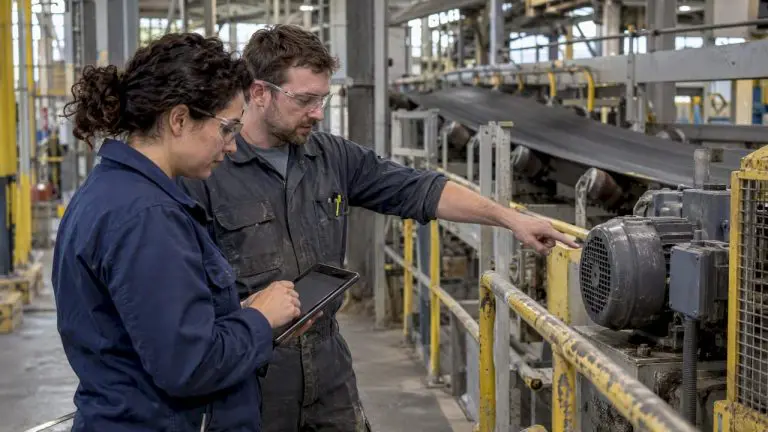

A capable mobile CMMS needs six things working together: fast work order handling, offline access that survives dead zones, QR or barcode asset lookup, real-time parts visibility, push notifications, and a field-tested interface that a technician can run one-handed. Get those right and the payoff shows up immediately, in fewer callback trips, faster repairs, and a clean audit trail for every job closed from a phone or tablet.
TL;DR:
- Ensuring offline mode allows complete work order execution without data loss requires testing full workflows, conflict resolution, and sync reliability before purchase.
- Asset barcode or QR code scanning must immediately display essential details including maintenance history, warranty status, and manuals to save technician time.
- Mobile CMMS should support creating, updating, and closing work orders entirely from the field with mandatory fields enforced and timestamped audit trails for compliance.
- Critical features like offline sync, barcode scanning accuracy, and real-time inventory visibility outperform dashboards and are essential for initial trust.
- Security features must include role-based access, tamper-proof audit records, and data encryption to meet industry compliance and protect sensitive information.
Table of Contents
- What Mobile CMMS Features Should You Expect in a Pilot?
- How Does Offline Mode Handle Poor Connectivity?
- Does QR or Barcode Scanning Speed Up Asset Lookup?
- Can Technicians Check Parts Availability From the Field?
- How Do Notifications Reduce Downtime Between Shifts?
- What Integrations Turn Mobile Data Into Useful Reports?
- What Security and Compliance Features Matter on Mobile?
- How Should Mobile CMMS Apps Be Designed for the Field?
- How MPulse Addresses Mobile CMMS Requirements
- A Pragmatic Take on Mobile CMMS Priorities
- Ready to Test Mobile CMMS Features in Your Own Facility?
- Sources
- FAQ
What Mobile CMMS Features Should You Expect in a Pilot?
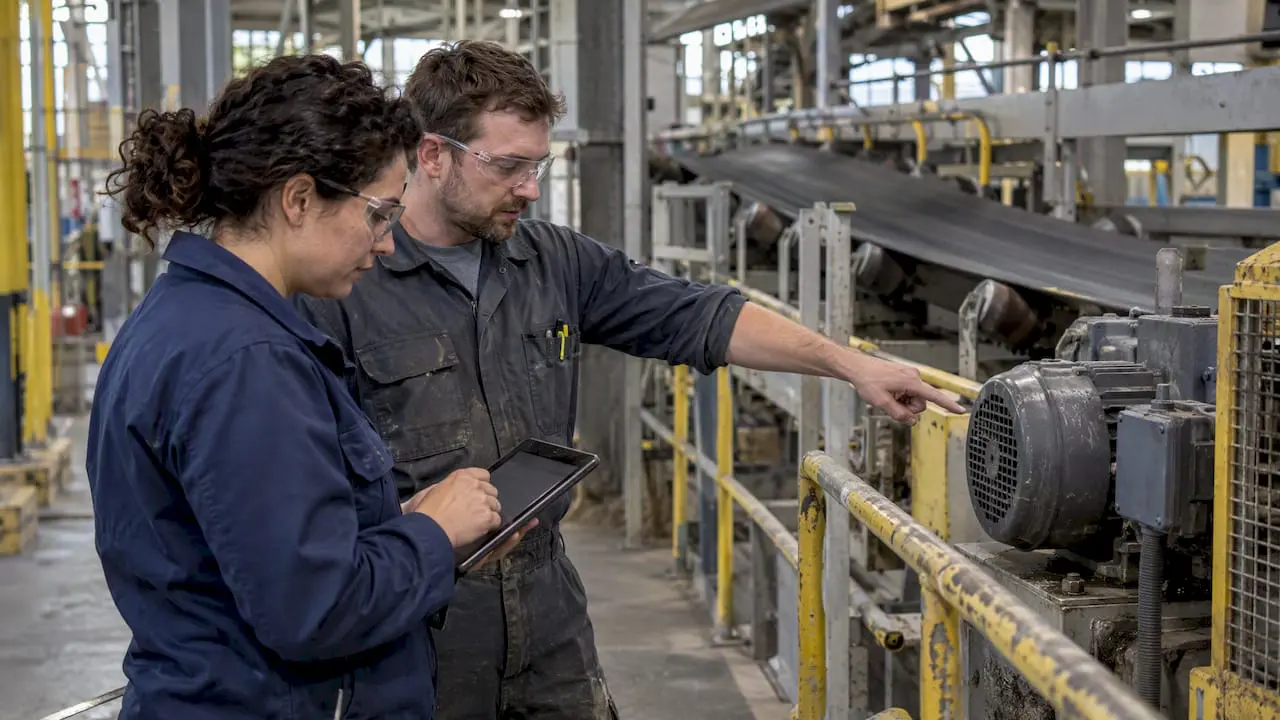
Mobile CMMS functionality gets sold with a lot of noise around dashboards and analytics. None of that matters if a technician standing at a broken conveyor can’t open, update, and close a work order without walking back to a desktop. Here’s what a mobile work order management app needs to handle, and what to actually test before signing a contract.
Work order creation and updates. Technicians should create, edit, and close work orders entirely from the mobile app, with mandatory fields (asset ID, failure code, labor hours) that block a false “complete” status. Time capture should start and stop with a tap, not a manual entry guess after the fact. E-signatures and a timestamped audit trail matter most for regulated shops, where a completed work order doubles as compliance proof.
Preventive maintenance access. PM schedules due that day should surface automatically on login, with the ability to trigger an unscheduled PM from the field when a technician spots early wear. Review how your team structures preventive maintenance schedules before assuming the mobile view will match desktop logic.
Digital checklists and documentation. Inspection checklists should branch based on answers (a failed reading triggers a follow-up question), and photo, voice, and timestamped notes should attach directly to the work order record, geotagged where relevant.
Test these acceptance criteria during any demo:
- Can a technician close a work order in under 60 seconds with all mandatory fields enforced?
- Do checklist branches trigger correctly when a failing condition is logged?
- Are timestamps and geotags automatically captured on photo and voice attachments?
- Does the e-signature create a locked, tamper-evident record?
Pro Tip: Run the demo on the oldest phone your crew actually carries, not the vendor’s demo tablet. A feature that looks smooth on a new device can lag badly on a three-year-old Android unit still in rotation.
How Does Offline Mode Handle Poor Connectivity?
Basements, rooftops, and remote plant equipment routinely sit outside cell coverage, so full offline capability isn’t optional. Assigned work orders need to cache locally, along with asset records, checklists, and equipment manuals, so a technician can complete a full job with zero signal.
Sync behavior is where most mobile CMMS tools separate themselves. The app should auto-sync the moment connectivity returns, and when two people edit the same work order offline, the system needs to surface that conflict rather than silently overwrite one version.
Before you buy, run these three tests:
- Put the device in airplane mode and complete a full work order, including photos and a checklist.
- Have two technicians edit the same asset record offline, then reconnect both and check how the conflict is flagged.
- Force a sync during a large photo upload and confirm nothing gets dropped or corrupted.
Practitioners who skip this step during pilots tend to discover sync gaps only after data loss has already happened in production.
Does QR or Barcode Scanning Speed Up Asset Lookup?
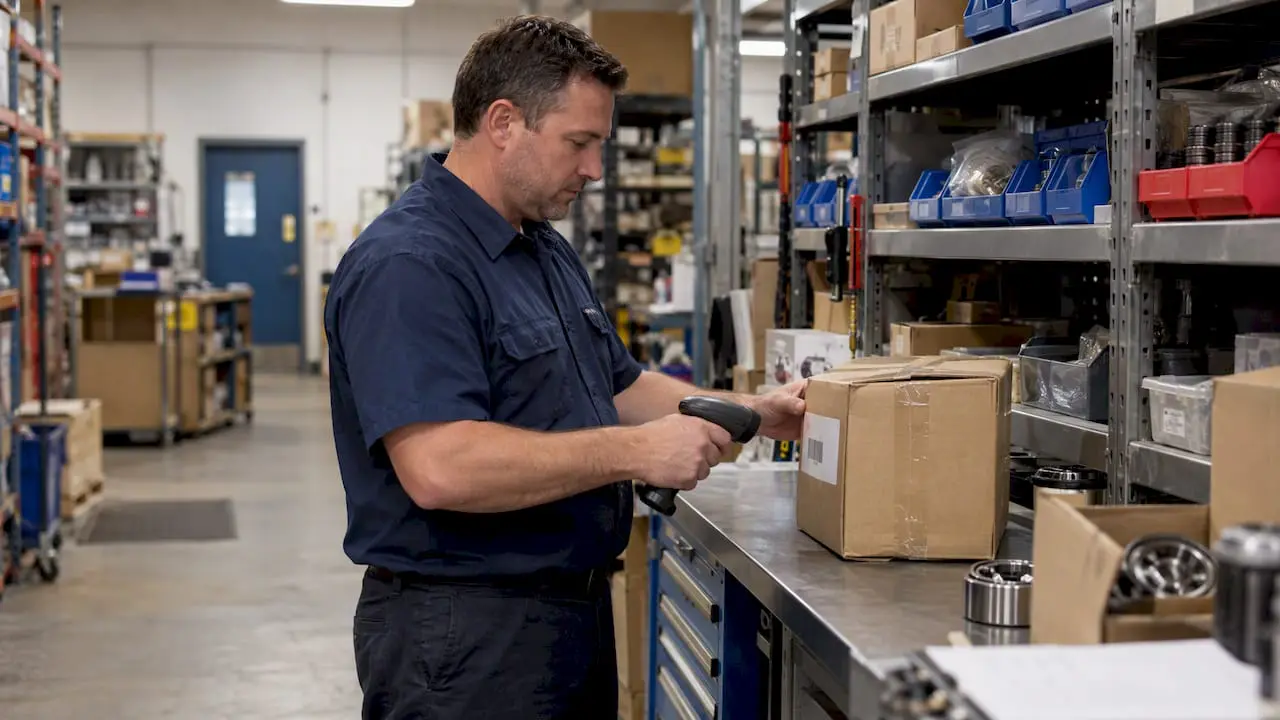
Scanning an asset tag pulls up equipment history and open work orders in seconds, cutting the time technicians spend hunting for a serial number or flipping through a binder. QR codes work well for dense information (a full asset profile in one scan), barcodes are cheaper for high-volume tagging, and NFC tags hold up better in environments where a label might get scratched off a reflective or curved surface.
Whichever format you choose, the scan should immediately surface:
- Asset name, location, and criticality rating
- Open and historical work orders tied to that unit
- Warranty status and last PM date
- Linked manuals or spec sheets
Geolocation adds a second layer. GPS tagging on work orders shows where a job was actually completed, useful for verifying multi-site technicians and for flagging equipment that’s been physically relocated without an update to the asset record.
For durability, choose polyester or laminate labels rated for UV, heat, and chemical exposure, and record every serial number in both human-readable and machine-readable form so a damaged scan still has a fallback.
Can Technicians Check Parts Availability From the Field?
Nothing kills first-time-fix rates faster than a technician driving back to the shop because nobody could confirm a part was in stock. A mobile CMMS with real-time inventory visibility lets a technician check stock, reserve a part, and issue it against a work order, all from the same device that’s running the job.
Look for these specific capabilities during evaluation:
- Live stock counts and bin locations visible on the work order screen
- The ability to reserve a part before leaving for the job site
- Substitute part suggestions when the primary item is out of stock
- Reorder triggers that fire automatically when quantities hit a threshold
The real value shows up when inventory connects to purchasing. A part issued from mobile should decrement stock and, once it crosses a reorder point, generate a requisition without anyone touching a spreadsheet.
How Do Notifications Reduce Downtime Between Shifts?
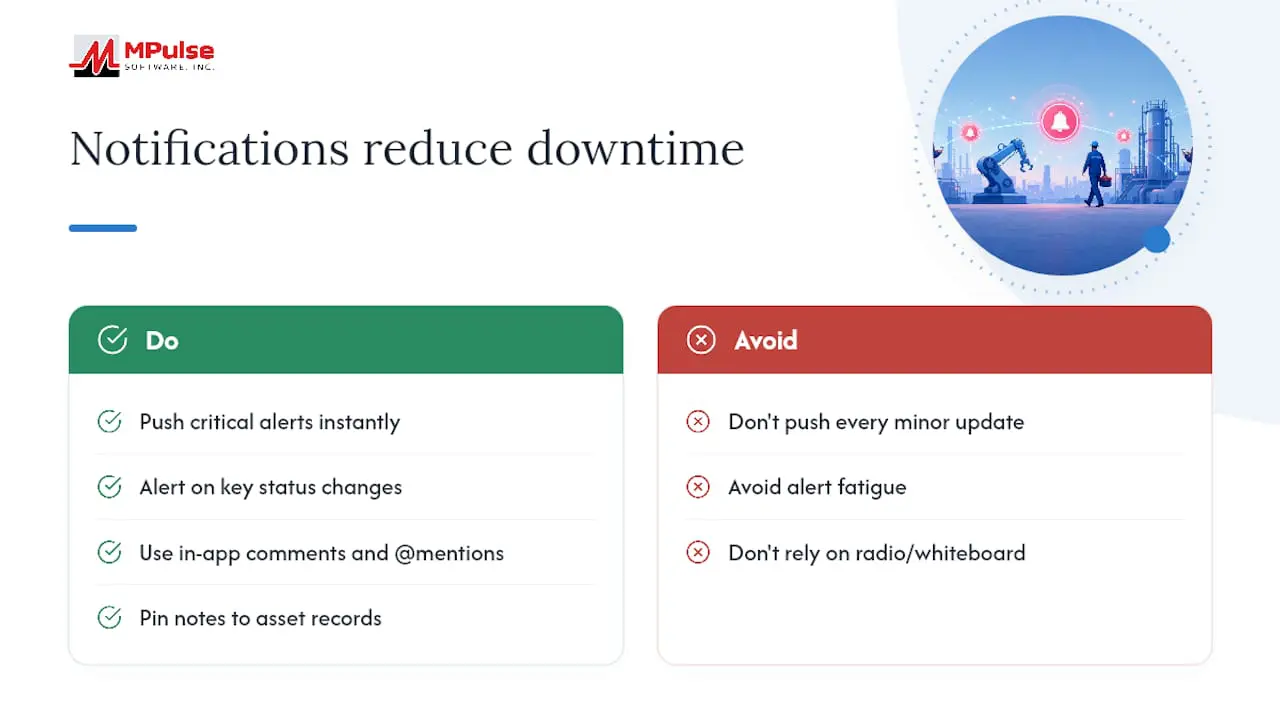
Push notifications for new or high-priority work orders keep technicians from finding out about a critical failure an hour late because nobody called. Status change alerts (a part arrived, a work order got reassigned) close the same communication gap that used to run through radio calls or a shift-change whiteboard.
In-app comments with photo annotation let one technician flag exactly what’s wrong on an image, and @mentions route a question straight to the right supervisor instead of an all-hands text thread. Pinned notes on an asset record carry context across shifts, like a known intermittent fault that hasn’t been fully diagnosed yet.
Watch for alert fatigue. A system that pushes every minor status update turns into noise technicians start ignoring, including the alerts that actually matter.
Pro Tip: Set notification tiers by priority level. Critical downtime alerts should interrupt; routine status updates should wait in an inbox the technician checks between jobs.
What Integrations Turn Mobile Data Into Useful Reports?
Mobile-captured data is only valuable if it flows cleanly into the reports a maintenance manager actually reviews. APIs connecting the CMMS to ERP and IoT sensor systems enrich work orders with context a technician wouldn’t otherwise have, like a vibration sensor reading that flagged the failure before it happened.
Data quality controls matter as much as the integration itself:
- Required fields that block submission until labor hours and failure codes are filled
- Automatic timestamps on every status change, not just creation and closure
- Attachment and signature audit trails that survive sync delays
Reports worth building around mobile inputs include mean time to repair (MTTR), unplanned downtime by asset, and PM compliance rate. All three break down fast if mobile data entry is inconsistent, which is why the field controls matter more than the reporting dashboard itself.
What Security and Compliance Features Matter on Mobile?
Role-based access should follow a least-privilege model. A technician sees the work orders and assets assigned to their site, not the full company inventory. Session management with automatic timeout and remote device wipe capability protects data if a phone is lost or an employee leaves.
For regulated environments, audit-ready records matter more than any other single feature:
- E-signatures locked to a timestamp and user ID
- Tamper-evident logs that flag any post-completion edit
- Configurable retention periods matching your industry’s compliance requirements
- Encryption in transit and at rest for inspection and QA documentation
Auditors care less about the software brand and more about whether a record can be proven unaltered from the moment a technician signed off.
How Should Mobile CMMS Apps Be Designed for the Field?
A thumb-friendly interface with large touch targets and minimal navigation depth isn’t a nice-to-have. Technicians frequently operate a phone one-handed, sometimes wearing gloves, while holding a tool or climbing a ladder with the other hand.
Voice-to-text cuts data entry time significantly compared to typing on a small screen, and photo annotation should work with the device’s native camera rather than a separate app. Rugged devices hold up better in harsh environments, but bring-your-own-device programs cut hardware costs, so weigh battery life and drop resistance against your actual budget before mandating one path.
Pro Tip: If your team wears gloves regularly, test the app’s touch sensitivity with gloves on during the demo, not just bare-handed. Many otherwise solid apps fail this test badly.
How MPulse Addresses Mobile CMMS Requirements
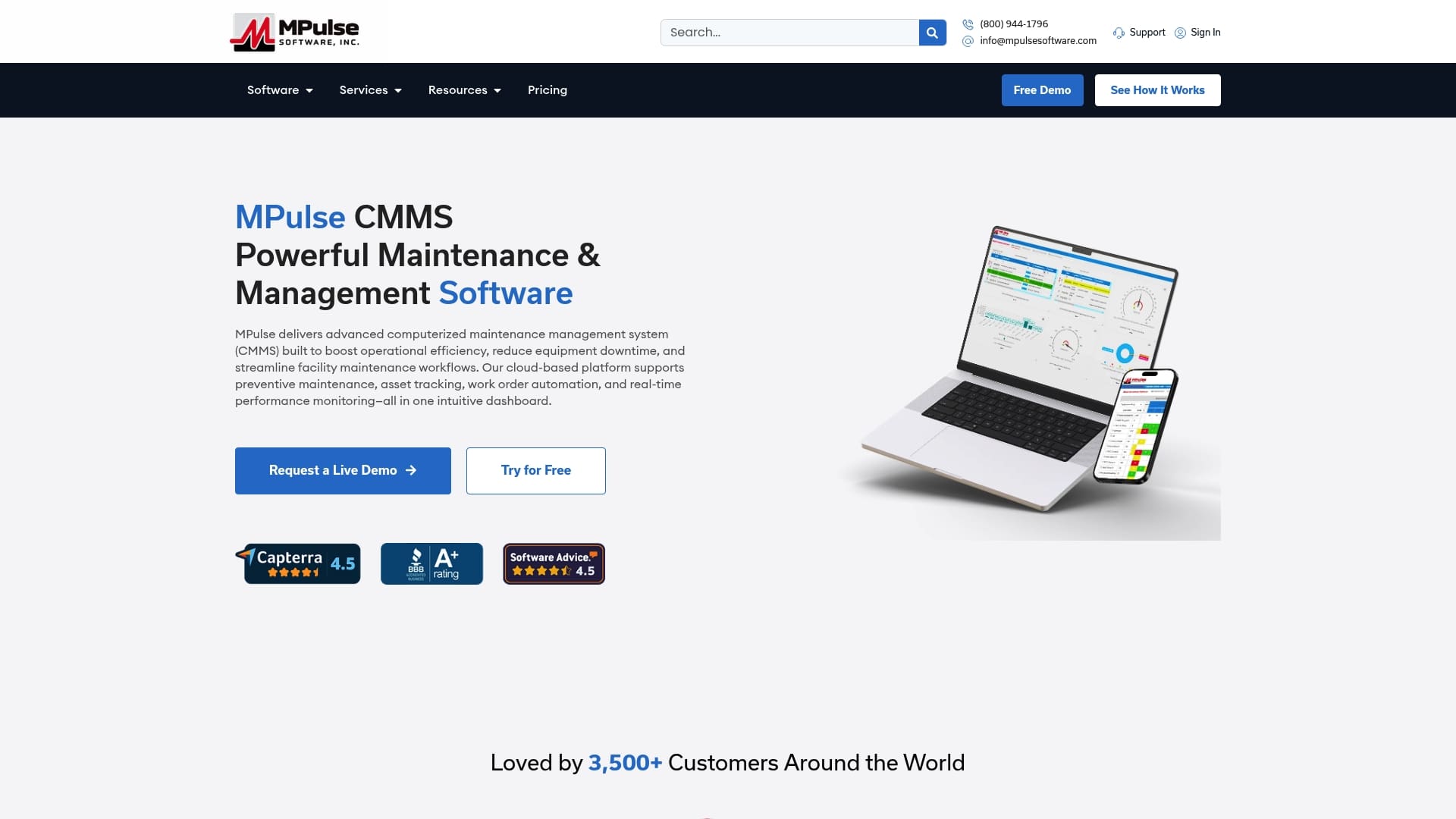
MPulse CMMS is built around the operational reality of unplanned downtime, combining preventive maintenance automation with real-time performance monitoring accessible from mobile devices. The platform’s calendar interface and integration options are designed to fit compliance-heavy industries where mobile records need to hold up to audit. MPulse reports serving over 3,500 customers globally, with documented efficiency gains of up to 40% among teams that adopted its mobile and desktop tools together.
A Pragmatic Take on Mobile CMMS Priorities
Pilot the reliability features first: offline sync, scanning accuracy, and inventory lookup. These decide whether technicians trust the app at all. Skip the temptation to roll out every dashboard and analytics module in phase one. Run one crew for thirty days, measure first-time-fix rate and time-to-close, then expand once the numbers hold up.
— Mark
Ready to Test Mobile CMMS Features in Your Own Facility?
Maintenance software providers give teams a direct path to test these mobile capabilities without committing to a long, expensive rollout first. Where some mobile apps bolt scanning or offline sync on as an afterthought, leading platforms build those features around compliance and calendar tools to support preventive maintenance.
If you’re planning a pilot, start by comparing the Professional and Advanced plans to see which edition matches your crew size and mobile needs. Teams that want hands-on help standing up mobile work orders, offline sync, and integrations can bring in CMMS Implementation Services to get the pilot running correctly the first time. Request a demo, walk your own technicians through the app on their actual devices, and measure the results before you commit to a full rollout.
Sources
- Mobile Work Order Management App for Technician Productivity
- Mobile vs. Desktop: Differences in CMMS Features
- Thumb-friendly design: optimizing mobile UI for one-handed use
FAQ
What Are the Core Features of a Mobile CMMS App?
The core features are mobile work order management, offline access with automatic sync, QR or barcode asset scanning, real-time parts inventory, push notifications, and role-based security controls. A mobile-optimized interface with large touch targets ties all of it together for technicians working one-handed in the field.
What Is the Most Popular CMMS Software?
Popularity varies by industry and facility size, and no single platform dominates every segment. MPulse CMMS is widely used among facilities in compliance-heavy industries, citing over 3,500 customers globally and documented efficiency gains up to 40% among adopters.
Is CMMS the Same as SAP?
No. CMMS is a category of software focused specifically on maintenance management, work orders, and asset tracking, while SAP is a broad enterprise resource planning (ERP) system covering finance, supply chain, and operations across an entire organization. Many CMMS platforms, including MPulse, integrate with SAP and similar ERP systems rather than replacing them.
What Are Some Examples of CMMS Use Cases?
Common use cases include scheduling preventive maintenance on production equipment, tracking work orders for facility repairs, managing spare parts inventory across multiple sites, and maintaining audit-ready compliance records for regulated industries. MPulse CMMS covers these use cases with calendar-based scheduling and mobile access built into the same platform.
How Do I Know if a Mobile CMMS Will Work Offline Reliably?
Test it directly during a pilot by putting a device in airplane mode and completing a full work order, including photos and a signature, then reconnecting to confirm the sync happens without data loss. Also test what happens when two technicians edit the same asset record offline at the same time, since conflict handling varies significantly between platforms.